Self-Hosting with Docker
Learn how to configure and deploy Supabase with Docker.
Docker is the easiest way to get started with self-hosted Supabase. It should take you less than 15 minutes to get up and running.
Contents#
- Before you begin
- System requirements
- Installing Supabase
- Configuring and securing Supabase
- Starting and stopping
- Accessing Supabase services
- Updating
- Uninstalling
- Advanced topics
Before you begin#
This guide assumes you're comfortable with:
- Linux server administration basics
- Basic
gitusage - Docker and Docker Compose
- Networking fundamentals (ports, DNS, firewalls)
If you're new to these topics, consider starting with the managed Supabase platform for free.
You need the following installed on your system:
- Git
- Docker:
- Linux server/VPS: Install Docker Engine and Docker Compose
- Linux desktop: Install Docker Desktop
- macOS: Install Docker Desktop
- Windows: Install Docker Desktop
System requirements#
Minimum requirements for running all Supabase components, suitable for development and small to medium production workloads:
| Resource | Minimum | Recommended |
|---|---|---|
| RAM | 4 GB | 8 GB+ |
| CPU | 2 cores | 4 cores+ |
| Disk | 40 GB SSD | 80 GB+ SSD |
If you don't need specific services, such as Realtime, Storage, imgproxy, or Edge Runtime (functions), you can remove the corresponding sections and dependencies from docker-compose.yml to reduce resource requirements.
The default configuration does not include Logs & Analytics. You can enable Logflare (Analytics), Vector (log collection), and the Log Explorer in Studio by using an optional docker-compose override file. Note that enabling these services will increase resource requirements.
Installing Supabase#
The Docker configuration is distributed as part of the Supabase repository. There are two paths to get it onto your machine:
- Quick start (Linux) - one command installs Docker, fetches the configuration, generates all secrets and keys, and prompts for your URLs. Fastest path if you're on a supported Linux distribution.
- Manual installation - clone the repository yourself on any OS, then configure secrets and URLs as described below.
Quick start (Linux)#
Run the automated install script to set up a new project in the current directory:
curl -fsSL https://supabase.link/setup.sh | shThe script supports Linux only (Debian/Ubuntu and RHEL/CentOS/Fedora) and will:
- Install prerequisites (
git,openssl,jq) and Docker Engine if not already present - Sparse-clone the
docker/directory from the main Supabase repository - Create a project directory (
supabase-projectby default) and copy the configuration files into it - Record the installed release version in
.supabase-versionfor futureupdate.shupgrades - Prompt for the main URLs (
SUPABASE_PUBLIC_URL,API_EXTERNAL_URL,SITE_URL,PROXY_DOMAIN) and write them to.env - Generate all secrets, including a random
DASHBOARD_PASSWORD, and the asymmetric JWT signing key pair (runsgenerate-keys.shandadd-new-auth-keys.sh, and enables the matching entries indocker-compose.yml) - Pull the Docker images
The shortened link points to setup.sh - you can inspect it before running. Use -y to run non-interactively with default values.
When the script installs Docker for you, it also adds the user to the docker group. Log out and back in before continuing, otherwise the docker commands below need sudo.
After the script finishes, start the stack:
cd supabase-project && \sh run.sh startView the generated credentials any time via:
sh run.sh secretsNext, see Starting and stopping for how to check service health and follow logs, then Accessing Supabase Studio (Dashboard) and the other related sections. To customize the install further, browse Configuring and securing Supabase and Advanced topics.
Not on Linux, or want to do it manually? See Manual installation below.
Manual installation#
This path gets the Docker Compose configuration onto your server, pinned to a specific tag. You'll set up secrets, keys, and URLs in the next section. For a newer release, use the latest tag.
A shallow clone of the full Supabase repository. Works on any OS with git installed and is the simplest manual option.
# Get the codegit clone --depth 1 --branch self-hosted/v0.8.2 https://github.com/supabase/supabase# Make your new supabase project directorymkdir supabase-project# Tree should look like this# .# ├── supabase# └── supabase-project# Copy the configuration to your projectcp -rf supabase/docker/. supabase-project# Switch to the project directory and create a .env from the examplecd supabase-project && cp .env.example .env# Record the base version so update.sh can upgrade this install laterprintf 'ref=self-hosted/v0.8.2\n' > .supabase-version# Pull the latest imagesdocker compose pullIf you are using rootless Docker, edit .env and set DOCKER_SOCKET_LOCATION to your docker socket location. For example: /run/user/1000/docker.sock. Otherwise, you will see an error like container supabase-vector exited (0).
Configuring and securing Supabase#
While we provided example placeholder passwords and keys in the .env.example file, you should never start your self-hosted Supabase using these defaults.
Review the configuration steps below and ensure you set all secrets properly before starting the services.
If you used Quick start (Linux), these tasks were already done - setup.sh configured secrets, keys, URLs, and a random DASHBOARD_PASSWORD. You can skip ahead to Starting and stopping, or read on to review what was set and how to change it.
Generate keys and secrets#
To generate secure passwords and secrets, run:
sh utils/generate-keys.shAs the next step, use the following script to add the new API keys and asymmetric key pair:
sh utils/add-new-auth-keys.shReview the output of both scripts and check the .env file before proceeding to configure Supabase URLs.
For a description of all secrets refer to the related section in the "Advanced topics" below. If you'd like to learn more about how the new API keys and asymmetric JWT signing work in a self-hosted Supabase setup, make sure to read the detailed how-to guide.
Configure Supabase URLs#
Review and change URL configuration variables:
SUPABASE_PUBLIC_URL: base URL for accessing Supabase from the Internet (Dashboard, API, Storage, etc.), e.g.,http://example.com:8000API_EXTERNAL_URL: used by the Auth service to configure callback URLs, e.g.,http://example.com:8000/auth/v1SITE_URL: default redirect URL for Auth, e.g.,http://example.com:3000
What your-domain means in the docs
Throughout the self-hosting guides, <your-domain> stands for the host where your Supabase instance is reachable: your domain name, your server's IP, or localhost, depending on your setup.
- Default setup: The API gateway (Envoy by default) listens on port
8000, so the full URL ishttp://<your-domain>:8000. - Behind a reverse proxy: the proxy terminates TLS on port
443, so the URL becomeshttps://<your-domain>.
Where to find your credentials#
The generated secrets and password are written to the .env file. The ones you are most likely to need when connecting your application to self-hosted Supabase are:
POSTGRES_PASSWORD: database password used in Postgres connection strings and bypsqlSUPABASE_PUBLISHABLE_KEY: publishable API key for client-side use (e.g., in your frontend)SUPABASE_SECRET_KEY: secret API key for server-side use. Never expose this in client codeSUPABASE_PUBLIC_URL: base URL you pass assupabaseUrlto the client libraries
You can view them at any time by opening .env directly, or by running:
sh run.sh secretsStudio authentication#
Access to Studio (Dashboard) is protected with HTTP basic authentication.
A secure password MUST be set before starting Supabase. The password must include at least one letter - do not use numbers only or any special characters.
In the .env file, edit DASHBOARD_PASSWORD to change the password, and optionally DASHBOARD_USERNAME to change the username.
Starting and stopping#
Start Supabase from the same directory as your docker-compose.yml file:
sh run.sh startThis is equivalent to docker compose up -d --wait, which starts all services and waits until they are healthy.
Check the status of the services:
docker compose psAfter a minute or less, all services should have a status Up [...] (healthy). If you see a status such as created but not Up, run the test script to determine what the problem might be:
sh tests/test-container-logs.shThen try inspecting the Docker logs for a specific container, e.g.,
sh run.sh logs storageTo stop Supabase, use:
sh run.sh stopWindows: CRLF line endings
If the API gateway fails to start with an entrypoint error, your local files may have been checked out with CRLF line endings instead of LF. Re-clone the repository, or normalize everything in the docker/ directory to LF, then restart Supabase. Fresh clones should already use LF because of .gitattributes.
Accessing Supabase Studio (Dashboard)#
By default, you can access the dashboard through the API gateway on port 8000.
For example: http://<your-domain>:8000, or http://<your-ip>:8000 (or localhost:8000 if you are running Docker Compose locally).
You will be prompted for a username and password. See the Studio authentication section for details.
Accessing Postgres#
Self-hosted Supabase pools Postgres connections through Supavisor by default, with an optional PgBouncer pooler and a direct-connection option. For connection strings, pooler configuration, switching poolers, and exposing Postgres directly, see Accessing Postgres.
To change the database password, read Changing database password.
Accessing Edge Functions#
Edge Functions live in volumes/functions. The default setup includes a hello function you can invoke with curl. It requires your publishable or secret key in the apikey header:
curl http://<your-domain>:8000/functions/v1/hello \ --header 'apikey: <SUPABASE_PUBLISHABLE_KEY>'Add new functions at volumes/functions/<FUNCTION_NAME>/index.ts, then restart the service to pick them up:
sh run.sh restart functionsThe main worker loads each function from disk per request, so a restart is enough to pick up new or changed function code. Use sh run.sh recreate functions instead when you change environment variables or secrets (for example .env.functions or the service's environment: block), since those are only applied when the container is recreated.
See the Self-hosted Edge Functions guide for more details.
Accessing APIs#
Each of the APIs is available through the same API gateway:
- REST:
http://<your-domain>:8000/rest/v1/ - Auth:
http://<your-domain>:8000/auth/v1/ - Storage:
http://<your-domain>:8000/storage/v1/ - Realtime:
http://<your-domain>:8000/realtime/v1/
Enabling analytics#
Logs & Analytics are not included in the default configuration to reduce the memory footprint. To enable them:
sh run.sh config add logs && \sh run.sh startThis layers docker-compose.logs.yml on top of the base configuration and starts two additional services:
- Logflare (Analytics) - log management and event analytics
- Vector - collects logs from all running containers and forwards them to Logflare
The Log Explorer in Studio is also enabled automatically. Note that these services increase resource requirements.
Configuring HTTPS#
By default, Supabase is accessible over HTTP. For production deployments, especially when using OAuth providers, you need HTTPS with a valid TLS certificate. The recommended approach is to place a reverse proxy (such as Caddy or Nginx) in front of the API gateway.
See the Configure HTTPS guide for detailed setup instructions.
Managing the stack#
Two helper scripts - run.sh and reset.sh are available in your project directory and wrap common operations.
run.sh manages the Docker Compose stack. Key commands:
| Command | Description |
|---|---|
sh run.sh start / stop | Start or stop the stack |
sh run.sh restart [service] | Restart the stack or a named service |
sh run.sh recreate [service] | Force-recreate containers, picking up config changes |
sh run.sh secrets | Print key credentials from .env |
sh run.sh config add <name> | Enable an optional override file |
sh run.sh config remove <name> | Disable an optional override file |
sh run.sh printenv <service> | Show environment variables inside the container |
sh run.sh logs [service] | Follow logs for all or a specific service |
The config add / config remove commands manage the COMPOSE_FILE variable in your .env, which controls which override files are layered on top of docker-compose.yml. For example, sh run.sh config add logs appends docker-compose.logs.yml to COMPOSE_FILE, and sh run.sh config remove logs removes it. Run sh run.sh help for the full list of commands.
reset.sh tears down the stack completely, removes all data, and resets .env to defaults. See Uninstalling for details.
Updating#
We publish stable snapshots of the Docker Compose setup approximately once a month. The images are tested together, so they may lag behind the latest updates on Docker Hub. If you want to run different versions of individual services, you can change the image tags in the compose files, but compatibility is not guaranteed.
To follow the updates, refer to the self-hosted Supabase changelog and the GitHub Discussions.
The update.sh script updates an existing deployment in place. By default, it pulls the latest self-hosted/v* configuration and merges it over your files with a three-way merge.
Refer to Update your self-hosted deployment for the full walkthrough - breaking changes, conflict resolution, pinning a release, and older installs without a recorded version.
To change or roll back a single service's image instead of updating everything - for example, Studio:
- Check the supabase/studio images on Supabase Docker Hub
- Find the version (tag) you want. It looks something like
2026.04.27-sha-5f60601 - Update the Studio
imageindocker-compose.yml:image: supabase/studio:2026.04.27-sha-5f60601 - Run
sh run.sh pullto pull the new image, thensh run.sh recreate studioto update Studio without taking down the rest of the stack.
Uninstalling#
Be careful - the following destroys all data, including the database and storage volumes!
To uninstall, run the following from the same directory as your docker-compose.yml file:
sh reset.shThis will:
- Stop all containers and remove Docker-managed volumes (
docker compose down -v --remove-orphans) - Delete the Postgres data directory (
volumes/db/data) and Storage data (volumes/storage) - Back up your
.envto.env.oldand restore.env.exampleas the new.env
Run with -y to skip the confirmation prompts: sh reset.sh -y
Advanced topics#
Everything beyond this point in the guide helps you understand how the system works and how you can modify it to suit your needs.
Architecture#
Supabase is built from open source tools, each chosen or developed for production use.
If the tools and communities already exist, with an MIT, Apache 2, PostgreSQL, or equivalent open source license, we will use and support that tool. If the tool doesn't exist, we build and open source it ourselves.
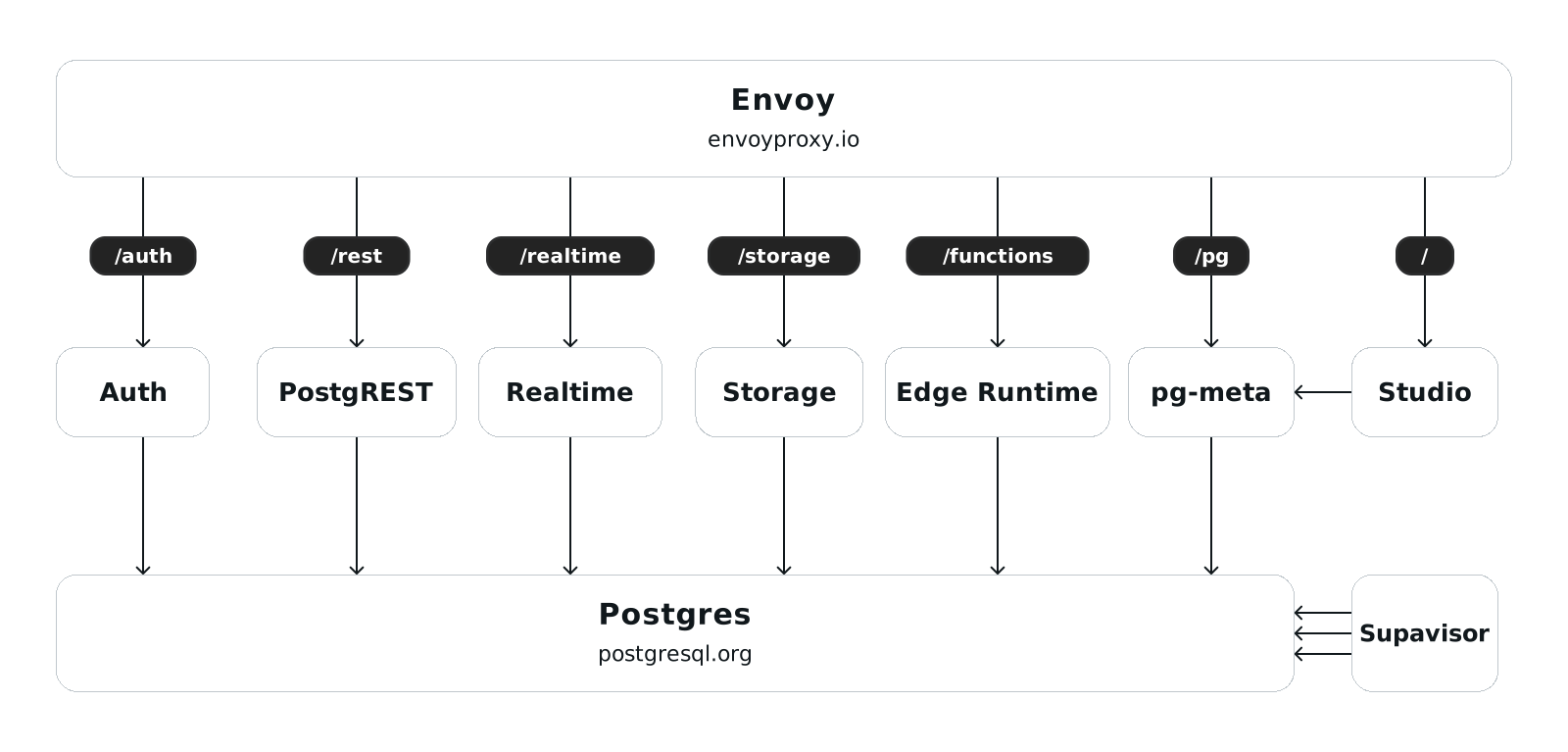
- Studio - A dashboard for managing your self-hosted Supabase project
- Envoy - API gateway (default; Kong available as an optional override)
- Auth - JWT-based authentication API for user sign-ups, logins, and session management
- PostgREST - Web server that turns your Postgres database directly into a RESTful API
- Realtime - Elixir server that listens to Postgres database changes and broadcasts them to subscribed clients
- Storage - RESTful API for managing files in S3, with Postgres handling permissions
- imgproxy - Fast and secure image processing server
- postgres-meta - RESTful API for managing Postgres (fetch tables, add roles, run queries)
- Postgres - Object-relational database with over 30 years of active development
- Edge Runtime - Web server based on Deno runtime for running JavaScript, TypeScript, and WASM services
- Logflare - Log management and event analytics platform
- Vector - High-performance observability data pipeline for logs
- Supavisor - Supabase's Postgres connection pooler
Multiple services require specific configuration within the Postgres database. Refer to the documentation describing the default roles to learn more.
You can find all the default extensions inside the schema migration scripts repo. These scripts are mounted at /docker-entrypoint-initdb.d to run automatically when starting the Postgres container.
Setting database password#
The generate-keys.sh script creates a secure random database password. If you want to use your own, you can change POSTGRES_PASSWORD in the .env file before starting Supabase for the first time.
Follow the password guidelines for choosing a secure password. For easier configuration, use only letters and numbers to avoid URL encoding issues in connection strings.
Changing database password#
To change the database password after the initial setup, run:
sh utils/db-passwd.shThe script generates a new password, updates all database roles, and modifies your .env file. After running it, stop and start the services with:
sh run.sh recreateRotating API keys#
Unlike the managed platform, where you rotate keys from the Dashboard, self-hosted API keys live in your .env file. To rotate the publishable and secret keys (SUPABASE_PUBLISHABLE_KEY and SUPABASE_SECRET_KEY) without changing the asymmetric signing key pair, run:
sh utils/rotate-new-api-keys.sh --update-envThen restart the services and update your applications with the new keys:
sh run.sh recreateUse the publishable key in client apps and the secret key only in trusted server-side environments. Rotating these keys does not invalidate existing user session tokens. You can also set a custom value by editing SUPABASE_PUBLISHABLE_KEY or SUPABASE_SECRET_KEY in .env directly, then recreating the services.
For rotating versus fully regenerating the asymmetric key pair (which does affect active sessions), see New API Keys and Asymmetric Authentication.
Configuring secrets#
The generate-keys.sh script sets the following secrets automatically. You can also configure them manually in the .env file if needed:
SECRET_KEY_BASE: encryption key for securing Realtime and Supavisor communications. (Must be at least 64 characters; generate withopenssl rand -base64 48)REALTIME_DB_ENC_KEY: encryption key used by Realtime for sensitive fields in the_realtimeschema. (Must be exactly 16 characters; generate withopenssl rand -hex 8)VAULT_ENC_KEY: encryption key used by Supavisor for storing encrypted configuration. (Must be exactly 32 characters; generate withopenssl rand -hex 16)PG_META_CRYPTO_KEY: encryption key for securing connection strings used by Studio against postgres-meta. (Must be at least 32 characters; generate withopenssl rand -base64 24)LOGFLARE_PUBLIC_ACCESS_TOKEN: API token for log ingestion used by Logflare and Vector. (Must be at least 32 characters; generate withopenssl rand -base64 24)LOGFLARE_PRIVATE_ACCESS_TOKEN: API token for Logflare management operations. Used by Studio for administrative tasks. Never expose client-side. (Must be at least 32 characters; generate withopenssl rand -base64 24)S3_PROTOCOL_ACCESS_KEY_ID: Access key ID (username-like) for accessing the S3 protocol endpoint in Storage. (Generate withopenssl rand -hex 16)S3_PROTOCOL_ACCESS_KEY_SECRET: Secret key (password-like) used with S3_PROTOCOL_ACCESS_KEY_ID. (Generate withopenssl rand -hex 32)MINIO_ROOT_PASSWORD: Root administrator password for the RustFS or MinIO server. (Must be 8+ characters; generate withopenssl rand -hex 16)
Configuring Supabase services#
Each service has a number of configuration options you can find in the related documentation.
Configuration options are generally added to the .env file and referenced in docker-compose.yml service definitions, e.g.,
services: rest: image: postgrest/postgrest environment: PGRST_DB_SCHEMAS: ${PGRST_DB_SCHEMAS} PGRST_DB_MAX_ROWS: ${PGRST_DB_MAX_ROWS:-1000} PGRST_DB_EXTRA_SEARCH_PATH: ${PGRST_DB_EXTRA_SEARCH_PATH:-public}Configuring social login (OAuth) providers#
See the Configure social login (OAuth) Providers guide for setup instructions.
Configuring phone sign-in, SMS, and MFA#
See the Configure Phone sign-in & MFA guide for SMS provider setup, OTP settings, and multi-factor authentication configuration.
Configuring an email server#
You will need to use a production-ready SMTP server for sending emails. You can configure the SMTP server by updating the following environment variables in the .env file:
SMTP_ADMIN_EMAIL=admin@example.comSMTP_HOST=smtp.example.comSMTP_PORT=465SMTP_USER=your-smtp-userSMTP_PASS=your-smtp-passwordSMTP_SENDER_NAME=your-sender-nameWe recommend using AWS SES. It's affordable and reliable. Restart all services to pick up the new configuration.
Configuring S3 Storage#
By default, when using self-hosted Storage service, all files are stored locally on your server filesystem (via a bind mount in docker-compose.yml). You can connect Storage to an S3-compatible backend (AWS S3, RustFS, MinIO, Cloudflare R2), enable the S3 protocol endpoint for tools like rclone, or both. These are independent features.
See the Configure S3 Storage guide for detailed setup instructions.
Using file backend in Storage on macOS#
By default, the Storage backend uses local files via a bind mount. On macOS, Docker Desktop bind mounts have known limitations (missing xattr support, permission issues) that can prevent Storage from working correctly. Change the bind mount to a named Docker volume instead.
Configuring Supabase AI Assistant#
Configuring the Supabase AI Assistant is optional. By adding your own OPENAI_API_KEY to .env you can enable AI services, which help with writing SQL queries, statements, and policies.
Setting log_min_messages in Postgres#
By default, the database's log_min_messages configuration is set to fatal in docker-compose.yml to prevent redundant logs generated by Realtime. You can configure log_min_messages using any of the Postgres Severity Levels.
Managing your secrets#
Many components inside Supabase rely on secrets and passwords being kept securely. By default, all secrets are in the .env file, but we strongly recommend using a secrets manager when deploying to production.
Some suggested systems include:
- Doppler
- Infisical
- Key Vault by Azure (Microsoft)
- Secrets Manager by AWS
- Secrets Manager by GCP
- Vault by HashiCorp
Demo#
- The VPS instance is a DigitalOcean droplet. (For server requirements refer to System requirements)
- To access Studio, use the IPv4 IP address of your Droplet.
- If you're unable to use Studio, run
docker compose psto see if all services are up and healthy.