Build a Social Auth App with Expo React Native
This tutorial demonstrates how to build a React Native app with Expo that implements social authentication. The app showcases a complete authentication flow with protected navigation using:
- Supabase Database - a Postgres database for storing your user data with Row Level Security to ensure data is protected and users can only access their own information.
- Supabase Auth - enables users to sign in through social authentication providers (Apple and Google).
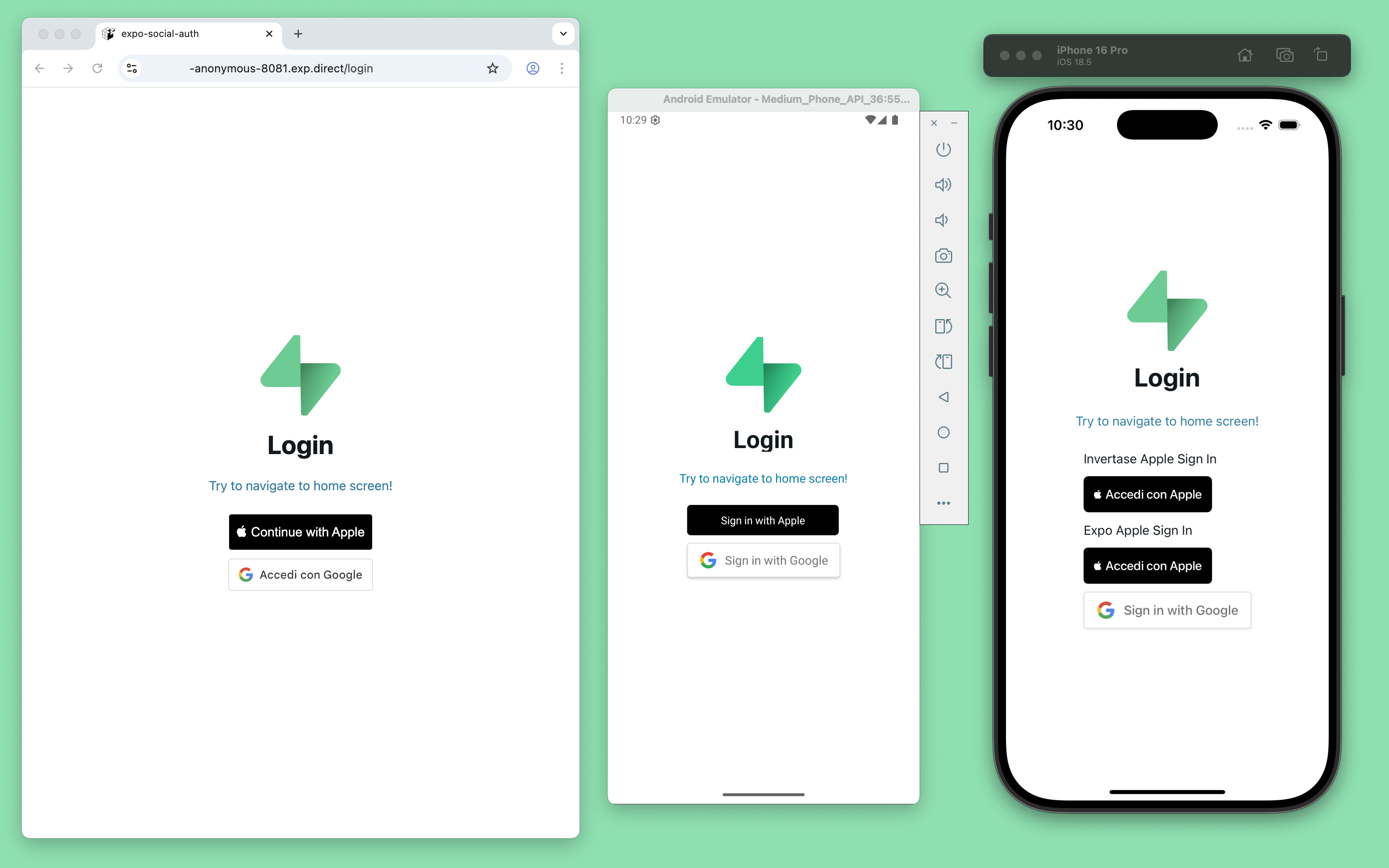
If you get stuck while working through this guide, refer to the full example on GitHub.
Project setup#
Before you start building you need to set up the Database and API. You can do this by starting a new Project in Supabase and then creating a "schema" inside the database.
Create a project#
- Create a new project in the Supabase Dashboard.
- Enter your project details.
- Wait for the new database to launch.
Set up the database schema#
Now set up the database schema. You can use the "User Management Starter" quickstart in the SQL Editor, or you can copy/paste the SQL from below and run it.
- Go to the SQL Editor page in the Dashboard.
- Click User Management Starter under the Reference > Examples tab.
- Click Run.
You can pull the database schema down to your local project by running the db pull command. Read the local development docs for detailed instructions.
supabase link --project-ref <project-id># You can get <project-id> from your project's dashboard URL: https://supabase.com/dashboard/project/<project-id>supabase db pullGet API details#
To interact with data in database tables, you use the client libraries that wrap the auto-generated Data API endpoints, authenticating using the Project URL and key from the project Connect dialog.
See API keys for a full explanation of all key types, their uses, and where to find them.
Building the app#
Start by building the React Native app from scratch.
Initialize a React Native app#
Use Expo to initialize an app called expo-social-auth with the standard template:
npx create-expo-app@latestcd expo-social-authInstall the additional dependencies:
- supabase-js
- @react-native-async-storage/async-storage - A key-value store for React Native.
- expo-secure-store - Provides a way to securely store key-value pairs locally on the device.
- expo-splash-screen - Provides a way to programmatically manage the splash screen.
npx expo install @supabase/supabase-js @react-native-async-storage/async-storage expo-secure-store expo-splash-screenNow, create a helper file to initialize the Supabase client for both web and React Native platforms using platform-specific storage adapters: Expo SecureStore for mobile and AsyncStorage for web.
import AsyncStorage from '@react-native-async-storage/async-storage'import { createClient } from '@supabase/supabase-js'import 'react-native-url-polyfill/auto'const isSSR = typeof window === 'undefined'const ExpoWebSecureStoreAdapter = { getItem: (key: string) => { if (isSSR) return null console.debug('getItem', { key }) return AsyncStorage.getItem(key) }, setItem: (key: string, value: string) => { if (isSSR) return return AsyncStorage.setItem(key, value) }, removeItem: (key: string) => { if (isSSR) return return AsyncStorage.removeItem(key) },}export const supabase = createClient( process.env.EXPO_PUBLIC_SUPABASE_URL ?? '', process.env.EXPO_PUBLIC_SUPABASE_PUBLISHABLE_KEY ?? '', { auth: { storage: ExpoWebSecureStoreAdapter, autoRefreshToken: true, persistSession: true, detectSessionInUrl: false, }, })Set up environment variables#
You need the API URL and the publishable key copied earlier.
These variables are safe to expose in your Expo app since Supabase has Row Level Security enabled on your database.
Create a .env file containing these variables:
EXPO_PUBLIC_SUPABASE_URL=""EXPO_PUBLIC_SUPABASE_PUBLISHABLE_KEY=""EXPO_PUBLIC_APPLE_AUTH_SERVICE_ID=""EXPO_PUBLIC_APPLE_AUTH_REDIRECT_URI=""EXPO_PUBLIC_GOOGLE_AUTH_WEB_CLIENT_ID=""Set up protected navigation#
Next, you need to protect app navigation to prevent unauthenticated users from accessing protected routes. Use the Expo SplashScreen to display a loading screen while fetching the user profile and verifying authentication status.
Create the AuthContext#
Create a React context to manage the authentication session, making it accessible from any component:
import { createContext, useContext } from 'react'export type AuthData = { claims?: Record<string, any> | null profile?: any | null isLoading: boolean isLoggedIn: boolean}export const AuthContext = createContext<AuthData>({ claims: undefined, profile: undefined, isLoading: true, isLoggedIn: false,})export const useAuthContext = () => useContext(AuthContext)Create the AuthProvider#
Next, create a provider component to manage the authentication session throughout the app:
import { AuthContext } from '@/hooks/use-auth-context'import { supabase } from '@/lib/supabase'import { PropsWithChildren, useEffect, useState } from 'react'export default function AuthProvider({ children }: PropsWithChildren) { const [claims, setClaims] = useState<Record<string, any> | undefined | null>() const [profile, setProfile] = useState<any>() const [isLoading, setIsLoading] = useState<boolean>(true) // Fetch the claims once, and subscribe to auth state changes useEffect(() => { const fetchClaims = async () => { setIsLoading(true) const { data, error } = await supabase.auth.getClaims() if (error) { console.error('Error fetching claims:', error) } setClaims(data?.claims ?? null) setIsLoading(false) } fetchClaims() const { data: { subscription }, } = supabase.auth.onAuthStateChange(async (_event, _session) => { console.log('Auth state changed:', { event: _event }) const { data } = await supabase.auth.getClaims() setClaims(data?.claims ?? null) }) // Cleanup subscription on unmount return () => { subscription.unsubscribe() } }, []) // Fetch the profile when the claims change useEffect(() => { const fetchProfile = async () => { setIsLoading(true) if (claims) { const { data } = await supabase.from('profiles').select('*').eq('id', claims.sub).single() setProfile(data) } else { setProfile(null) } setIsLoading(false) } fetchProfile() }, [claims]) return ( <AuthContext.Provider value={{ claims, isLoading, profile, isLoggedIn: claims != undefined, }} > {children} </AuthContext.Provider> )}Create the SplashScreenController#
Create a SplashScreenController component to display the Expo SplashScreen while the authentication session is loading:
import { useAuthContext } from '@/hooks/use-auth-context'import { SplashScreen } from 'expo-router'SplashScreen.preventAutoHideAsync()export function SplashScreenController() { const { isLoading } = useAuthContext() if (!isLoading) { SplashScreen.hideAsync() } return null}Create a sign-out component#
Create a sign-out button component to handle user sign-out:
import { supabase } from '@/lib/supabase'import React from 'react'import { Button } from 'react-native'async function onSignOutButtonPress() { const { error } = await supabase.auth.signOut() if (error) { console.error('Error signing out:', error) }}export default function SignOutButton() { return <Button title="Sign out" onPress={onSignOutButtonPress} />}And add it to the app/(tabs)/index.tsx file used to display the user profile data and the sign-out button:
import { Image } from 'expo-image'import { StyleSheet } from 'react-native'import { HelloWave } from '@/components/hello-wave'import ParallaxScrollView from '@/components/parallax-scroll-view'import { ThemedText } from '@/components/themed-text'import { ThemedView } from '@/components/themed-view'import SignOutButton from '@/components/social-auth-buttons/sign-out-button'import { useAuthContext } from '@/hooks/use-auth-context'export default function HomeScreen() { const { profile } = useAuthContext() return ( <ParallaxScrollView headerBackgroundColor={{ light: '#A1CEDC', dark: '#1D3D47' }} headerImage={ <Image source={require('@/assets/images/partial-react-logo.png')} style={styles.reactLogo} /> } > <ThemedView style={styles.titleContainer}> <ThemedText type="title">Welcome!</ThemedText> <HelloWave /> </ThemedView> <ThemedView style={styles.stepContainer}> <ThemedText type="subtitle">Username</ThemedText> <ThemedText>{profile?.username}</ThemedText> <ThemedText type="subtitle">Full name</ThemedText> <ThemedText>{profile?.full_name}</ThemedText> </ThemedView> <SignOutButton /> </ParallaxScrollView> )}const styles = StyleSheet.create({ titleContainer: { flexDirection: 'row', alignItems: 'center', gap: 8, }, stepContainer: { gap: 8, marginBottom: 8, }, reactLogo: { height: 178, width: 290, bottom: 0, left: 0, position: 'absolute', },})Create a sign-in screen#
Next, create a basic sign-in screen component:
import { Link, Stack } from 'expo-router'import { StyleSheet } from 'react-native'import { ThemedText } from '@/components/themed-text'import { ThemedView } from '@/components/themed-view'export default function LoginScreen() { return ( <> <Stack.Screen options={{ title: 'Login' }} /> <ThemedView style={styles.container}> <ThemedText type="title">Login</ThemedText> <Link href="/" style={styles.link}> <ThemedText type="link">Try to navigate to home screen!</ThemedText> </Link> </ThemedView> </> )}const styles = StyleSheet.create({ container: { flex: 1, alignItems: 'center', justifyContent: 'center', padding: 20, }, link: { marginTop: 15, paddingVertical: 15, },})Implement protected routes#
Wrap the navigation with the AuthProvider and SplashScreenController.
Using Expo Router's protected routes, you can secure navigation:
import { DarkTheme, DefaultTheme, ThemeProvider } from '@react-navigation/native'import { Stack } from 'expo-router'import { StatusBar } from 'expo-status-bar'import 'react-native-reanimated'import { SplashScreenController } from '@/components/splash-screen-controller'import { useAuthContext } from '@/hooks/use-auth-context'import { useColorScheme } from '@/hooks/use-color-scheme'import AuthProvider from '@/providers/auth-provider'// Separate RootNavigator so we can access the AuthContextfunction RootNavigator() { const { isLoggedIn } = useAuthContext() return ( <Stack> <Stack.Protected guard={isLoggedIn}> <Stack.Screen name="(tabs)" options={{ headerShown: false }} /> </Stack.Protected> <Stack.Protected guard={!isLoggedIn}> <Stack.Screen name="login" options={{ headerShown: false }} /> </Stack.Protected> <Stack.Screen name="+not-found" /> </Stack> )}export default function RootLayout() { const colorScheme = useColorScheme() return ( <ThemeProvider value={colorScheme === 'dark' ? DarkTheme : DefaultTheme}> <AuthProvider> <SplashScreenController /> <RootNavigator /> <StatusBar style="auto" /> </AuthProvider> </ThemeProvider> )}You can now test the app by running:
npx expo prebuildnpx expo start --clearVerify that the app works as expected. The splash screen displays while fetching the user profile, and the sign-in page appears even when attempting to navigate to the home screen using the Link button.
By default Supabase Auth requires email verification before a session is created for the user. To support email verification you need to implement deep link handling!
While testing, you can disable email confirmation in your project's email auth provider settings.
Integrate social authentication#
Now integrate social authentication with Supabase Auth, starting with Apple authentication. If you only need to implement Google authentication, you can skip to the Google authentication section.
Apple authentication#
Start by adding the button inside the sign-in screen:
…import AppleSignInButton from '@/components/social-auth-buttons/apple/apple-sign-in-button';…export default function LoginScreen() { return ( <> <Stack.Screen options={{ title: 'Login' }} /> <ThemedView style={styles.container}> … <AppleSignInButton /> … </ThemedView> </> );}…For Apple authentication, you can choose between:
- Invertase's React Native Apple Authentication library - that supports iOS, Android
- react-apple-signin-auth - that supports Web, also suggested by Invertase
- Expo's AppleAuthentication library - that supports iOS only
For either option, you need to obtain a Service ID from the Apple Developer Console.
To enable Apple sign-up on Android and Web, you also need to register the tunnelled URL (e.g., https://arnrer1-anonymous-8081.exp.direct) obtained by running:
npx expo start --tunnelAnd add it to the Redirect URLs field in your Supabase dashboard Authentication configuration.
For more information, follow the Supabase Sign in with Apple guide.
Prerequisites#
Before proceeding, ensure you have followed the Invertase prerequisites documented in the Invertase Initial Setup Guide and the Invertase Android Setup Guide.
You need to add two new environment variables to the .env file:
EXPO_PUBLIC_APPLE_AUTH_SERVICE_ID="YOUR_APPLE_AUTH_SERVICE_ID"EXPO_PUBLIC_APPLE_AUTH_REDIRECT_URI="YOUR_APPLE_AUTH_REDIRECT_URI"iOS#
Install the @invertase/react-native-apple-authentication library:
npx expo install @invertase/react-native-apple-authenticationThen create the iOS specific button component AppleSignInButton:
import { supabase } from '@/lib/supabase'import { AppleButton, appleAuth } from '@invertase/react-native-apple-authentication'import type { SignInWithIdTokenCredentials } from '@supabase/supabase-js'import { router } from 'expo-router'import { Platform } from 'react-native'async function onAppleButtonPress() { // Performs login request const appleAuthRequestResponse = await appleAuth.performRequest({ requestedOperation: appleAuth.Operation.LOGIN, // Note: it appears putting FULL_NAME first is important, see issue #293 requestedScopes: [appleAuth.Scope.FULL_NAME, appleAuth.Scope.EMAIL], }) // Get the current authentication state for user // Note: This method must be tested on a real device. On the iOS simulator it always throws an error. const credentialState = await appleAuth.getCredentialStateForUser(appleAuthRequestResponse.user) console.log('Apple sign in successful:', { credentialState, appleAuthRequestResponse }) if ( credentialState === appleAuth.State.AUTHORIZED && appleAuthRequestResponse.identityToken && appleAuthRequestResponse.authorizationCode ) { const signInWithIdTokenCredentials: SignInWithIdTokenCredentials = { provider: 'apple', token: appleAuthRequestResponse.identityToken, nonce: appleAuthRequestResponse.nonce, access_token: appleAuthRequestResponse.authorizationCode, } const { data, error } = await supabase.auth.signInWithIdToken(signInWithIdTokenCredentials) if (error) { console.error('Error signing in with Apple:', error) } if (data) { console.log('Apple sign in successful:', data) router.navigate('/(tabs)') } }}export default function AppleSignInButton() { if (Platform.OS !== 'ios') { return <></> } return ( <AppleButton buttonStyle={AppleButton.Style.BLACK} buttonType={AppleButton.Type.SIGN_IN} style={{ width: 160, height: 45 }} onPress={() => onAppleButtonPress()} /> )}To test functionality on the simulator, remove the getCredentialStateForUser check:
Enable the Apple authentication capability in iOS:
{ "expo": { … "ios": { … "usesAppleSignIn": true … }, … }}Add the capabilities to the Info.plist file by following the Expo documentation.
Before testing the app, if you've already built the iOS app, clean the project artifacts:
npx react-native-clean-project clean-project-autoIf issues persist, try completely cleaning the cache, as reported by many users in this closed issue.
Finally, update the iOS project by installing the Pod library and running the Expo prebuild command:
cd iospod installcd ..npx expo prebuildNow test the application on a physical device:
npx expo run:ios --no-build-cache --deviceYou should see the sign-in screen with the Apple authentication button.
If you get stuck while working through this guide, refer to the full Invertase example on GitHub.
Android#
Install the required libraries:
npx expo install @invertase/react-native-apple-authentication react-native-get-random-values uuidNext, create the Android-specific AppleSignInButton component:
import { supabase } from '@/lib/supabase'import { appleAuthAndroid, AppleButton } from '@invertase/react-native-apple-authentication'import { SignInWithIdTokenCredentials } from '@supabase/supabase-js'import { Platform } from 'react-native'import 'react-native-get-random-values'import { v4 as uuid } from 'uuid'async function onAppleButtonPress() { // Generate secure, random values for state and nonce const rawNonce = uuid() const state = uuid() // Configure the request appleAuthAndroid.configure({ // The Service ID you registered with Apple clientId: process.env.EXPO_PUBLIC_APPLE_AUTH_SERVICE_ID ?? '', // Return URL added to your Apple dev console. We intercept this redirect, but it must still match // the URL you provided to Apple. It can be an empty route on your backend as it's never called. redirectUri: process.env.EXPO_PUBLIC_APPLE_AUTH_REDIRECT_URI ?? '', // The type of response requested - code, id_token, or both. responseType: appleAuthAndroid.ResponseType.ALL, // The amount of user information requested from Apple. scope: appleAuthAndroid.Scope.ALL, // Random nonce value that will be SHA256 hashed before sending to Apple. nonce: rawNonce, // Unique state value used to prevent CSRF attacks. A UUID will be generated if nothing is provided. state, }) // Open the browser window for user sign in const credentialState = await appleAuthAndroid.signIn() console.log('Apple sign in successful:', credentialState) if (credentialState.id_token && credentialState.code && credentialState.nonce) { const signInWithIdTokenCredentials: SignInWithIdTokenCredentials = { provider: 'apple', token: credentialState.id_token, nonce: credentialState.nonce, access_token: credentialState.code, } const { data, error } = await supabase.auth.signInWithIdToken(signInWithIdTokenCredentials) if (error) { console.error('Error signing in with Apple:', error) } if (data) { console.log('Apple sign in successful:', data) } }}export default function AppleSignInButton() { if (Platform.OS !== 'android' || appleAuthAndroid.isSupported !== true) { return <></> } return ( <AppleButton buttonStyle={AppleButton.Style.BLACK} buttonType={AppleButton.Type.SIGN_IN} onPress={() => onAppleButtonPress()} /> )}You should now be able to test the authentication by running it on a physical device or simulator:
npx expo run:android --no-build-cacheGoogle authentication#
Start by adding the button to the sign-in screen:
…import GoogleSignInButton from '@/components/social-auth-buttons/google/google-sign-in-button';…export default function LoginScreen() { return ( <> <Stack.Screen options={{ title: 'Login' }} /> <ThemedView style={styles.container}> … <GoogleSignInButton /> … </ThemedView> </> );}…For Google authentication, you can choose between the following options:
- GN Google Sign In Premium - that supports iOS, Android, and Web by using the latest Google's One Tap sign-in (but it requires a subscription)
- @react-oauth/google - that supports Web (so it's not a good option for mobile, but it works)
- Relying on the
signInWithOAuthfunction of the Supabase Auth - that also supports iOS, Android and Web (useful also to manage any other OAuth provider)
The GN Google Sign In Free doesn't support iOS or Android, as it doesn't allow to pass a custom nonce to the sign-in request.
For either option, you need to obtain a Web Client ID from the Google Cloud Engine, as explained in the Google Sign In guide.
This guide only uses the @react-oauth/google@latest option for the Web, and the signInWithOAuth for the mobile platforms.
Before proceeding, add a new environment variable to the .env file:
EXPO_PUBLIC_GOOGLE_AUTH_WEB_CLIENT_ID="YOUR_GOOGLE_AUTH_WEB_CLIENT_ID"Install the @react-oauth/google library:
npx expo install @react-oauth/googleEnable the expo-web-browser plugin in app.json:
{ "expo": { … "plugins": [ … [ "expo-web-browser", { "experimentalLauncherActivity": false } ] … ], … }}Then create the iOS specific button component GoogleSignInButton:
import { supabase } from '@/lib/supabase'import { CredentialResponse, GoogleLogin, GoogleOAuthProvider } from '@react-oauth/google'import { SignInWithIdTokenCredentials } from '@supabase/supabase-js'import { useEffect, useState } from 'react'import 'react-native-get-random-values'export default function GoogleSignInButton() { // Generate secure, random values for state and nonce const [nonce, setNonce] = useState('') const [sha256Nonce, setSha256Nonce] = useState('') async function onGoogleButtonSuccess(authRequestResponse: CredentialResponse) { console.debug('Google sign in successful:', { authRequestResponse }) if (authRequestResponse.clientId && authRequestResponse.credential) { const signInWithIdTokenCredentials: SignInWithIdTokenCredentials = { provider: 'google', token: authRequestResponse.credential, nonce: nonce, } const { data, error } = await supabase.auth.signInWithIdToken(signInWithIdTokenCredentials) if (error) { console.error('Error signing in with Google:', error) } if (data) { console.log('Google sign in successful:', data) } } } function onGoogleButtonFailure() { console.error('Error signing in with Google') } useEffect(() => { function generateNonce(): string { const array = new Uint32Array(1) window.crypto.getRandomValues(array) return array[0].toString() } async function generateSha256Nonce(nonce: string): Promise<string> { const buffer = await window.crypto.subtle.digest('sha-256', new TextEncoder().encode(nonce)) const array = Array.from(new Uint8Array(buffer)) return array.map((b) => b.toString(16).padStart(2, '0')).join('') } let nonce = generateNonce() setNonce(nonce) generateSha256Nonce(nonce).then((sha256Nonce) => { setSha256Nonce(sha256Nonce) }) }, []) return ( <GoogleOAuthProvider clientId={process.env.EXPO_PUBLIC_GOOGLE_AUTH_WEB_CLIENT_ID ?? ''} nonce={sha256Nonce} > <GoogleLogin nonce={sha256Nonce} onSuccess={onGoogleButtonSuccess} onError={onGoogleButtonFailure} useOneTap={true} auto_select={true} /> </GoogleOAuthProvider> )}Test the authentication in your browser using the tunnelled HTTPS URL:
npx expo start --tunnelTo allow the Google Sign In to work, as you did before for Apple, you need to register the tunnelled URL (e.g., https://arnrer1-anonymous-8081.exp.direct) obtained to the Authorized JavaScript origins list of your Google Cloud Console's OAuth 2.0 Client IDs configuration.