Build a User Management App with Next.js
Explore drop-in UI components for your Supabase app.
UI components built on shadcn/ui that connect to Supabase via a single command.
This tutorial demonstrates how to build a basic user management app. The app authenticates and identifies the user, stores their profile information in the database, and allows the user to log in, update their profile details, and upload a profile photo. The app uses:
- Supabase Database - a Postgres database for storing your user data and Row Level Security so data is protected and users can only access their own information.
- Supabase Auth - allow users to sign up and log in.
- Supabase Storage - allow users to upload a profile photo.
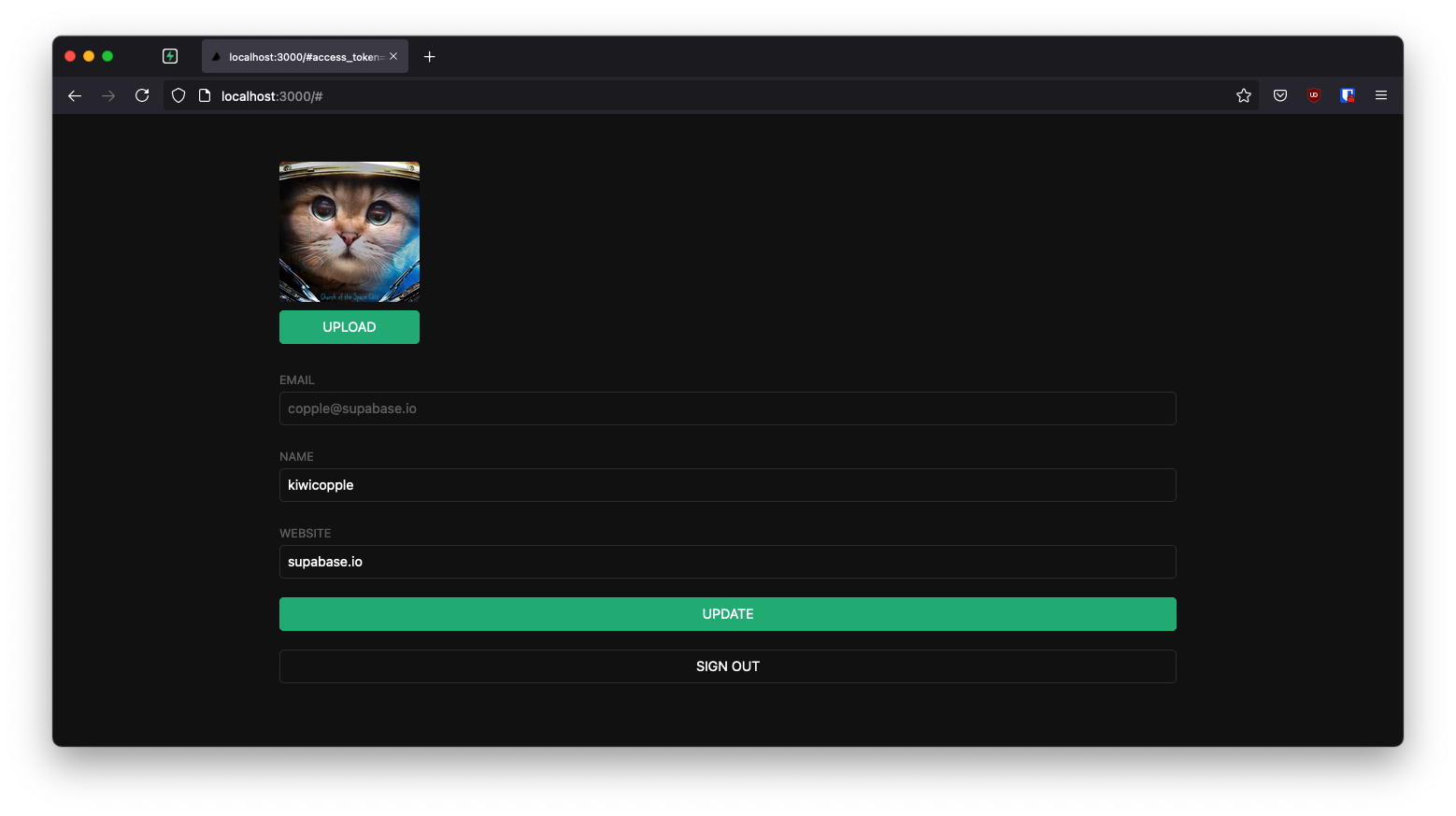
If you get stuck while working through this guide, you can find the full example on GitHub.
Project setup#
Before you start building you need to set up the Database and API. You can do this by starting a new Project in Supabase and then creating a "schema" inside the database.
Create a project#
- Create a new project in the Supabase Dashboard.
- Enter your project details.
- Wait for the new database to launch.
Set up the database schema#
Now set up the database schema. You can use the "User Management Starter" quickstart in the SQL Editor, or you can copy/paste the SQL from below and run it.
- Go to the SQL Editor page in the Dashboard.
- Click User Management Starter under the Reference > Examples tab.
- Click Run.
You can pull the database schema down to your local project by running the db pull command. Read the local development docs for detailed instructions.
supabase link --project-ref <project-id># You can get <project-id> from your project's dashboard URL: https://supabase.com/dashboard/project/<project-id>supabase db pullGet API details#
To interact with data in database tables, you use the client libraries that wrap the auto-generated Data API endpoints, authenticating using the Project URL and key from the project Connect dialog.
See API keys for a full explanation of all key types, their uses, and where to find them.
Building the app#
Start building the Next.js app from scratch.
Initialize a Next.js app#
Use create-next-app to initialize an app called supabase-nextjs:
npx create-next-app@latest --ts --use-npm supabase-nextjscd supabase-nextjsInstall supabase-js:
npm install @supabase/supabase-jsSave the environment variables in a .env.local file at the root of the project, and paste the API URL and the key that you copied earlier.
The application exposes these variables in the browser, and that's fine as Supabase enables Row Level Security by default on all tables.
NEXT_PUBLIC_SUPABASE_URL=YOUR_SUPABASE_URLNEXT_PUBLIC_SUPABASE_PUBLISHABLE_KEY=YOUR_SUPABASE_PUBLISHABLE_KEYApp styling (optional)#
An optional step is to update the CSS file app/globals.css to make the app look better.
You can find the full contents of this file in the example repository.
Supabase Server-Side Auth package#
Next.js is a versatile framework offering pre-rendering at build time (SSG), server-side rendering at request time (SSR), API routes, and proxy edge-functions.
To better integrate with the framework, we've created the @supabase/ssr package for Server-Side Auth. It has all the functionalities to configure your Supabase project to use cookies for storing user sessions. Read the Next.js Server-Side Auth guide for more information.
Install the package for Next.js.
npm install @supabase/ssrSupabase utilities#
There are two different types of clients in Supabase:
- Client Component client - To access Supabase from Client Components, which run in the browser.
- Server Component client - To access Supabase from Server Components, Server Actions, and Route Handlers, which run only on the server.
We recommend creating the following utilities files for creating clients, and organize them within lib/supabase at the root of the project.
Create a client.ts and a server.ts with the following code for client-side Supabase and server-side Supabase, respectively.
import { createBrowserClient } from '@supabase/ssr'export function createClient() { // Create a supabase client on the browser with project's credentials return createBrowserClient( process.env.NEXT_PUBLIC_SUPABASE_URL!, process.env.NEXT_PUBLIC_SUPABASE_PUBLISHABLE_KEY! )}Next.js proxy#
Since Server Components can't write cookies, you need Proxy to refresh expired Auth tokens and store them.
You accomplish this by:
- Refreshing the Auth token with the call to
supabase.auth.getClaims. - Passing the refreshed Auth token to Server Components through
request.cookies.set, so they don't attempt to refresh the same token themselves. - Passing the refreshed Auth token to the browser, so it replaces the old token. This is done with
response.cookies.set.
You could also add a matcher, so that the Proxy only runs on routes that access Supabase. For more information, read the Next.js matcher documentation.
Be careful when protecting pages. The server gets the user session from the cookies, which anyone can spoof.
The Supabase Auth SDK contains three different functions for authenticating user access to applications:
Summary of the methods#
- Use
getClaimsto protect pages and user data. It reads the access token from storage and verifies it. Locally via the WebCrypto API and a cached JWKS endpoint when the project uses asymmetric signing keys (the default for new projects), or by callinggetUsersolely to validate when symmetric keys are in use. The returned claims always come from decoding the JWT, not from a user lookup. When the access token is close to expiring,getClaimsrefreshes the session before it verifies, which is how a server-rendered session stays alive. getUsermakes a network call to the project's Auth instance to get the user record, which includes the most up-to-date information about the user at the cost of a network call.getSessionwhen you need the raw session (the access token, refresh token, and expiry). For example to forward the access token to another service. The session is loaded directly from local storage and isn't re-validated against the Auth server, so the embedded user object shouldn't be trusted on its own when storage is shared with the client (cookies, request headers). To verify identity, validate the access token withgetClaims, or callgetUserfor a fresh, server-confirmed user record.
In summary: use getClaims to verify identity (typically for protecting pages and data), getUser when you need an up-to-date user record from the Auth server, and getSession when you need the access or refresh token directly, but don't rely on the user object it returns for authorization decisions.
Create a proxy.ts file at the project root and another one within the lib/supabase folder. The lib/supabase file contains the logic for updating the session. The proxy.ts file uses this, which is a Next.js convention.
import { type NextRequest } from 'next/server'import { updateSession } from '@/lib/supabase/proxy'export async function proxy(request: NextRequest) { // update user's auth session return await updateSession(request)}export const config = { matcher: [ /* * Match all request paths except for the ones starting with: * - _next/static (static files) * - _next/image (image optimization files) * - favicon.ico (favicon file) * Feel free to modify this pattern to include more paths. */ '/((?!_next/static|_next/image|favicon.ico|.*\\.(?:svg|png|jpg|jpeg|gif|webp)$).*)', ],}Set up a sign-in page#
Sign-in and sign-up form#
To add sign-in/sign-up page for your application, create a new folder named login, containing a page.tsx file with the following code for a sign-in/sign-up form:
import { login, signup } from './actions'export default function LoginPage() { return ( <form> <label htmlFor="email">Email:</label> <input id="email" name="email" type="email" required /> <label htmlFor="password">Password:</label> <input id="password" name="password" type="password" required /> <button formAction={login}>Log in</button> <button formAction={signup}>Sign up</button> </form> )}Create the sign-in/sign-up actions to hook up the form to the function which does the following:
- Retrieve the user's information.
- Send that information to Supabase as a sign-up request, which in turns sends a confirmation email. It uses Magic Links, so users can sign in with their email without using passwords.
- Handle any error that arises.
Create the actions.ts file in the app/login folder, which contains the sign-in and sign-up functions and the error/page.tsx file, which displays an error message if the sign-in or sign-up fails.
'use server'import { revalidatePath } from 'next/cache'import { redirect } from 'next/navigation'import { createClient } from '@/lib/supabase/server'export async function login(formData: FormData) { const supabase = await createClient() // type-casting here for convenience // in practice, you should validate your inputs const data = { email: formData.get('email') as string, password: formData.get('password') as string, } const { error } = await supabase.auth.signInWithPassword(data) if (error) { redirect('/error') } revalidatePath('/', 'layout') redirect('/account')}export async function signup(formData: FormData) { const supabase = await createClient() // type-casting here for convenience // in practice, you should validate your inputs const data = { email: formData.get('email') as string, password: formData.get('password') as string, } const { error } = await supabase.auth.signUp(data) if (error) { redirect('/error') } revalidatePath('/', 'layout') redirect('/account')}The cookies method is called before any calls to Supabase, which takes fetch calls out of Next.js's caching. This is important for authenticated data fetches, to ensure that users get access only to their own data.
Read the Next.js docs to learn more about opting out of data caching.
Email template#
Before proceeding, change the email template to support a server-side authentication flow that sends a token hash:
- Go to the Auth templates page in your dashboard.
- Select the Confirm signup template.
- Change
{{ .ConfirmationURL }}to{{ .SiteURL }}/auth/confirm?token_hash={{ .TokenHash }}&type=email.
Did you know?
You can customize other emails sent out to new users, including the email's looks, content, and query parameters from the Authentication > Email section of the Dashboard.
Confirmation endpoint#
As you are working in a server-side rendering (SSR) environment, you need to create a server endpoint responsible for exchanging the token_hash for a session.
The code performs the following steps:
- Retrieves the code sent back from the Supabase Auth server using the
token_hashquery parameter. - Exchanges this code for a session, which you store in your chosen storage mechanism (in this case, cookies).
- Finally, redirects the user to the
accountpage.
import { type EmailOtpType } from '@supabase/supabase-js'import { type NextRequest, NextResponse } from 'next/server'import { createClient } from '@/lib/supabase/server'// Creating a handler to a GET request to route /auth/confirmexport async function GET(request: NextRequest) { const { searchParams } = new URL(request.url) const token_hash = searchParams.get('token_hash') const type = searchParams.get('type') as EmailOtpType | null const next = '/account' // Create redirect link without the secret token const redirectTo = request.nextUrl.clone() redirectTo.pathname = next redirectTo.searchParams.delete('token_hash') redirectTo.searchParams.delete('type') if (token_hash && type) { const supabase = await createClient() const { error } = await supabase.auth.verifyOtp({ type, token_hash, }) if (!error) { redirectTo.searchParams.delete('next') return NextResponse.redirect(redirectTo) } } // return the user to an error page with some instructions redirectTo.pathname = '/error' return NextResponse.redirect(redirectTo)}Account page#
After a user signs in, they need a way to edit their profile details and manage their accounts.
Create a new component for that called AccountForm within the app/account folder.
'use client'import { useCallback, useEffect, useState } from 'react'import { createClient } from '@/lib/supabase/client'import Avatar from './avatar'// ...export default function AccountForm({ claims }: { claims: Claims | null }) { const supabase = createClient() const [loading, setLoading] = useState(true) const [fullname, setFullname] = useState<string | null>(null) const [username, setUsername] = useState<string | null>(null) const [website, setWebsite] = useState<string | null>(null) const [avatar_url, setAvatarUrl] = useState<string | null>(null) const getProfile = useCallback(async () => { try { if (!claims?.sub) { setLoading(false) return } setLoading(true) const { data, error, status } = await supabase .from('profiles') .select(`full_name, username, website, avatar_url`) .eq('id', claims.sub) .single() if (error && status !== 406) { console.log(error) throw error } if (data) { setFullname(data.full_name) setUsername(data.username) setWebsite(data.website) setAvatarUrl(data.avatar_url) } } catch (error) { alert('Error loading user data!') } finally { setLoading(false) } }, [claims, supabase]) useEffect(() => { getProfile() }, [claims, getProfile]) async function updateProfile({ username, website, avatar_url, }: { username: string | null fullname: string | null website: string | null avatar_url: string | null }) { try { if (!claims?.sub) { alert('You must be logged in to update your profile') return } setLoading(true) const { error } = await supabase.from('profiles').upsert({ id: claims.sub, full_name: fullname, username, website, avatar_url, updated_at: new Date().toISOString(), }) // ... return ( <div className="form-widget"> {/* ... */} <div> <label htmlFor="email">Email</label> <input id="email" type="text" value={claims?.email ?? ''} disabled /> </div> <div> <label htmlFor="fullName">Full Name</label> <input id="fullName" type="text" value={fullname || ''} onChange={(e) => setFullname(e.target.value)} /> </div> <div> <label htmlFor="username">Username</label> <input id="username" type="text" value={username || ''} onChange={(e) => setUsername(e.target.value)} /> </div> <div> <label htmlFor="website">Website</label> <input id="website" type="url" value={website || ''} onChange={(e) => setWebsite(e.target.value)} /> </div> <div> <button className="button primary block" onClick={() => updateProfile({ fullname, username, website, avatar_url })} disabled={loading || !claims?.sub} > {loading ? 'Loading ...' : 'Update'} </button> </div> <div> <form action="/auth/signout" method="post"> <button className="button block" type="submit"> Sign out </button> </form> </div> </div> )}Create an account page for the AccountForm component you created
import AccountForm from './account-form'import { createClient } from '@/lib/supabase/server'export default async function Account() { const supabase = await createClient() const { data: claimsData } = await supabase.auth.getClaims() return <AccountForm claims={claimsData?.claims ?? null} />}Sign out#
Create a route handler to handle the sign-out from the server side, making sure to check if the user is signed in first.
import { createClient } from '@/lib/supabase/server'import { revalidatePath } from 'next/cache'import { type NextRequest, NextResponse } from 'next/server'export async function POST(req: NextRequest) { const supabase = await createClient() // Check if a user's logged in const { data: claimsData } = await supabase.auth.getClaims() if (claimsData?.claims) { await supabase.auth.signOut() } revalidatePath('/', 'layout') return NextResponse.redirect(new URL('/login', req.url), { status: 302, })}Profile photos#
Next, add a way for users to upload a profile photo. Supabase configures every project with Storage for managing large files like photos and videos.
Create an upload widget#
Start by creating a new component:
'use client'import React, { useEffect, useState } from 'react'import { createClient } from '@/lib/supabase/client'import Image from 'next/image'export default function Avatar({ uid, url, size, onUpload,}: { uid: string | null url: string | null size: number onUpload: (url: string) => void}) { const supabase = createClient() const [avatarUrl, setAvatarUrl] = useState<string | null>(url) const [uploading, setUploading] = useState(false) useEffect(() => { async function downloadImage(path: string) { try { const { data, error } = await supabase.storage.from('avatars').download(path) if (error) { throw error } const url = URL.createObjectURL(data) setAvatarUrl(url) } catch (error) { console.log('Error downloading image: ', error) } } if (url) downloadImage(url) }, [url, supabase]) const uploadAvatar: React.ChangeEventHandler<HTMLInputElement> = async (event) => { try { setUploading(true) if (!event.target.files || event.target.files.length === 0) { throw new Error('You must select an image to upload.') } const file = event.target.files[0] const fileExt = file.name.split('.').pop() const filePath = `${uid}-${Math.random()}.${fileExt}` const { error: uploadError } = await supabase.storage.from('avatars').upload(filePath, file) if (uploadError) { throw uploadError } onUpload(filePath) } catch (error) { alert('Error uploading avatar!') } finally { setUploading(false) } } return ( <div> {avatarUrl ? ( <Image width={size} height={size} src={avatarUrl} alt="Avatar" className="avatar image" style={{ height: size, width: size }} /> ) : ( <div className="avatar no-image" style={{ height: size, width: size }} /> )} <div style={{ width: size }}> <label className="button primary block" htmlFor="single"> {uploading ? 'Uploading ...' : 'Upload'} </label> <input style={{ visibility: 'hidden', position: 'absolute', }} type="file" id="single" accept="image/*" onChange={uploadAvatar} disabled={uploading} /> </div> </div> )}Update the account form#
With the Avatar component created, update app/account/account-form.tsx to include it:
'use client'import { useCallback, useEffect, useState } from 'react'import { createClient } from '@/lib/supabase/client'import Avatar from './avatar'type Claims = { sub: string; email?: string; [key: string]: unknown }export default function AccountForm({ claims }: { claims: Claims | null }) { const supabase = createClient() const [loading, setLoading] = useState(true) const [fullname, setFullname] = useState<string | null>(null) const [username, setUsername] = useState<string | null>(null) const [website, setWebsite] = useState<string | null>(null) const [avatar_url, setAvatarUrl] = useState<string | null>(null) const getProfile = useCallback(async () => { try { if (!claims?.sub) { setLoading(false) return } setLoading(true) const { data, error, status } = await supabase .from('profiles') .select(`full_name, username, website, avatar_url`) .eq('id', claims.sub) .single() if (error && status !== 406) { console.log(error) throw error } if (data) { setFullname(data.full_name) setUsername(data.username) setWebsite(data.website) setAvatarUrl(data.avatar_url) } } catch (error) { alert('Error loading user data!') } finally { setLoading(false) } }, [claims, supabase]) useEffect(() => { getProfile() }, [claims, getProfile]) async function updateProfile({ username, website, avatar_url, }: { username: string | null fullname: string | null website: string | null avatar_url: string | null }) { try { if (!claims?.sub) { alert('You must be logged in to update your profile') return } setLoading(true) const { error } = await supabase.from('profiles').upsert({ id: claims.sub, full_name: fullname, username, website, avatar_url, updated_at: new Date().toISOString(), }) if (error) throw error alert('Profile updated!') } catch (error) { alert('Error updating the data!') } finally { setLoading(false) } } return ( <div className="form-widget"> <Avatar uid={claims?.sub ?? null} url={avatar_url} size={150} onUpload={(url) => { setAvatarUrl(url) updateProfile({ fullname, username, website, avatar_url: url }) }} /> <div> <label htmlFor="email">Email</label> <input id="email" type="text" value={claims?.email ?? ''} disabled /> </div> <div> <label htmlFor="fullName">Full Name</label> <input id="fullName" type="text" value={fullname || ''} onChange={(e) => setFullname(e.target.value)} /> </div> <div> <label htmlFor="username">Username</label> <input id="username" type="text" value={username || ''} onChange={(e) => setUsername(e.target.value)} /> </div> <div> <label htmlFor="website">Website</label> <input id="website" type="url" value={website || ''} onChange={(e) => setWebsite(e.target.value)} /> </div> <div> <button className="button primary block" onClick={() => updateProfile({ fullname, username, website, avatar_url })} disabled={loading || !claims?.sub} > {loading ? 'Loading ...' : 'Update'} </button> </div> <div> <form action="/auth/signout" method="post"> <button className="button block" type="submit"> Sign out </button> </form> </div> </div> )}Launch#
With all the pages, route handlers, and components in place, run the following in a terminal window:
npm run devAnd then open the browser to localhost:3000/login and you should see the completed app.
When you enter your email and password, you will receive an email with the title Confirm your email. Congrats 🎉!!!
At this stage you have a fully functional application!
See also#
- See the complete example on GitHub and deploy it to Vercel
- Build a Twitter Clone with the Next.js App Router and Supabase - free egghead course
- Explore the pre-built Auth components
- Explore the Supabase Cache Helpers
- See the Next.js Subscription Payments Starter template on GitHub