Build a User Management App with Refine
This tutorial demonstrates how to build a basic user management app. The app authenticates and identifies the user, stores their profile information in the database, and allows the user to log in, update their profile details, and upload a profile photo. The app uses:
- Supabase Database - a Postgres database for storing your user data and Row Level Security so data is protected and users can only access their own information.
- Supabase Auth - allow users to sign up and log in.
- Supabase Storage - allow users to upload a profile photo.
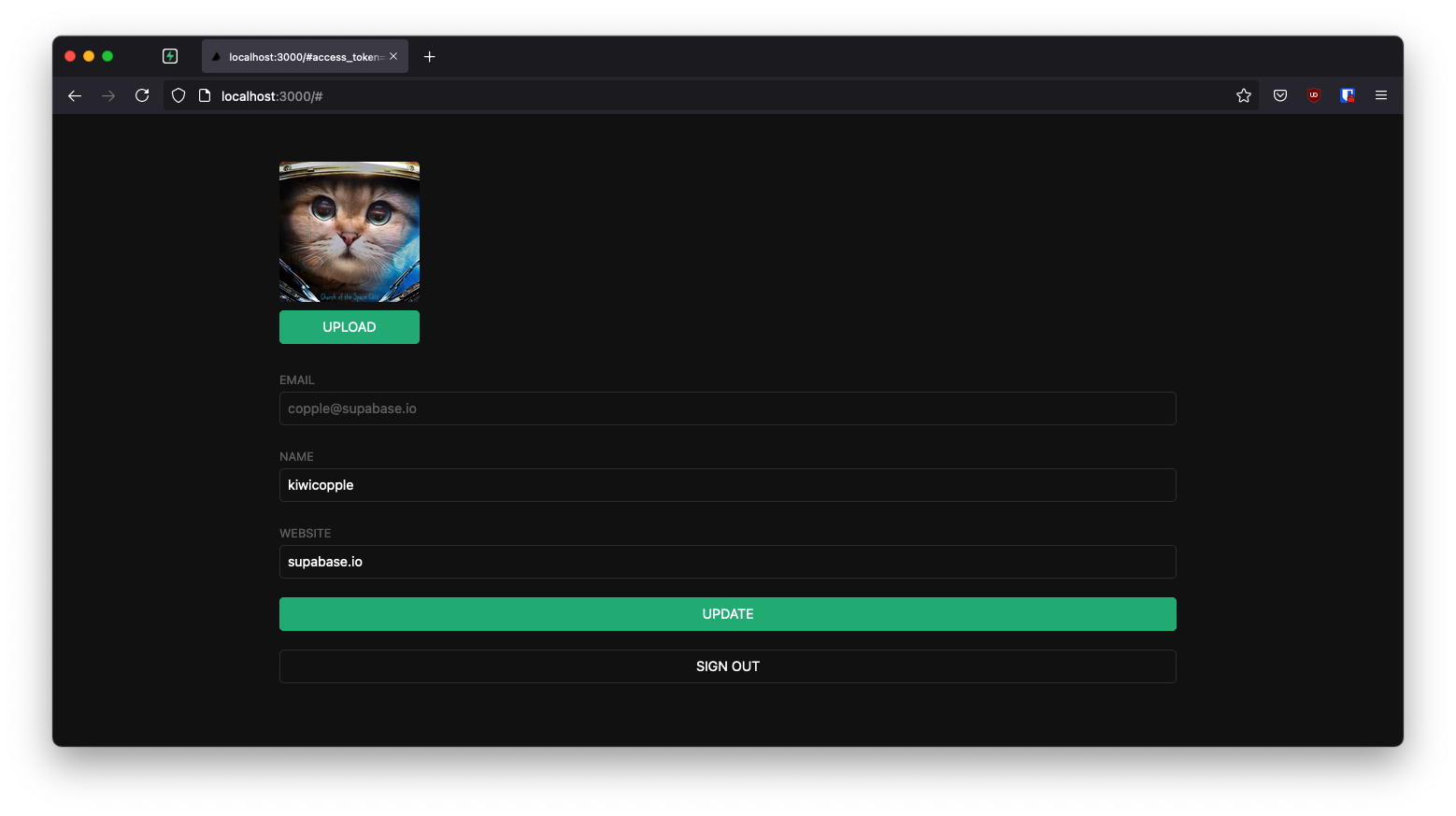
If you get stuck while working through this guide, you can find the full example on GitHub.
About Refine#
Refine is a React-based framework used to rapidly build data-heavy applications like admin panels, dashboards, storefronts and any type of CRUD apps. It separates app concerns into individual layers, each backed by a React context and respective provider object. For example, the auth layer represents a context served by a specific set of authProvider methods that carry out authentication and authorization actions such as signing in, signing out, getting roles data, etc. Similarly, the data layer offers another level of abstraction equipped with dataProvider methods to handle CRUD operations at appropriate backend API endpoints.
Refine provides hassle-free integration with a Supabase backend with its supplementary @refinedev/supabase package. It generates authProvider and dataProvider methods at project initialization, so you don't need to spend much effort defining them yourself, choose Supabase as the backend service while creating the app with create refine-app.
Project setup#
Before you start building you need to set up the Database and API. You can do this by starting a new Project in Supabase and then creating a "schema" inside the database.
Create a project#
- Create a new project in the Supabase Dashboard.
- Enter your project details.
- Wait for the new database to launch.
Set up the database schema#
Now set up the database schema. You can use the "User Management Starter" quickstart in the SQL Editor, or you can copy/paste the SQL from below and run it.
- Go to the SQL Editor page in the Dashboard.
- Click User Management Starter under the Reference > Examples tab.
- Click Run.
You can pull the database schema down to your local project by running the db pull command. Read the local development docs for detailed instructions.
supabase link --project-ref <project-id># You can get <project-id> from your project's dashboard URL: https://supabase.com/dashboard/project/<project-id>supabase db pullGet API details#
To interact with data in database tables, you use the client libraries that wrap the auto-generated Data API endpoints, authenticating using the Project URL and key from the project Connect dialog.
See API keys for a full explanation of all key types, their uses, and where to find them.
Building the app#
Start building the Refine app from scratch.
Initialize a Refine app#
Use create refine-app command to initialize an app. Run the following in the terminal:
npm create refine-app@latest -- --preset refine-supabaseThe command above uses the refine-supabase preset which chooses the Supabase supplementary package for the app. There's no UI framework, so the app has a headless UI with plain React and CSS styling.
The refine-supabase preset installs the @refinedev/supabase package which out-of-the-box includes the Supabase dependency: supabase-js.
Install the @refinedev/react-hook-form and react-hook-form packages that to use React Hook Form inside Refine apps. Run:
npm install @refinedev/react-hook-form react-hook-formRefine supabaseClient#
The create refine-app generated a Supabase client in the src/utility/supabaseClient.ts file. It has two constants: SUPABASE_URL and SUPABASE_KEY. Replace them as supabaseUrl and supabasePublishableKey respectively and assign them your Supabase server's values.
Update it with environment variables managed by Vite:
import { createClient } from '@refinedev/supabase'const supabaseUrl = import.meta.env.VITE_SUPABASE_URLconst supabasePublishableKey = import.meta.env.VITE_SUPABASE_PUBLISHABLE_KEYexport const supabaseClient = createClient(supabaseUrl, supabasePublishableKey, { db: { schema: 'public', }, auth: { persistSession: true, },})Save the environment variables in a .env.local file. All you need are the API URL and the key that you copied earlier.
VITE_SUPABASE_URL=YOUR_SUPABASE_URLVITE_SUPABASE_PUBLISHABLE_KEY=YOUR_SUPABASE_PUBLISHABLE_KEYThe supabaseClient fetches calls to Supabase endpoints from the app. The client is instrumental in implementing authentication using Refine's auth provider methods and CRUD actions with appropriate data provider methods.
App styling (optional)#
An optional step is to update the CSS file src/App.css to make the app look better.
You can find the full contents of this file in the example repository.
The <Refine /> component#
In order to add sign-in and user profile pages in this App, tweak the <Refine /> component inside App.tsx.
The App.tsx file initially looks like this:
import { Refine, WelcomePage } from '@refinedev/core'import { RefineKbar, RefineKbarProvider } from '@refinedev/kbar'import routerProvider, { DocumentTitleHandler, UnsavedChangesNotifier,} from '@refinedev/react-router'import { dataProvider, liveProvider } from '@refinedev/supabase'import { BrowserRouter, Route, Routes } from 'react-router'import './App.css'import authProvider from './authProvider'import { supabaseClient } from './utility'function App() { return ( <BrowserRouter> <RefineKbarProvider> <Refine dataProvider={dataProvider(supabaseClient)} liveProvider={liveProvider(supabaseClient)} authProvider={authProvider} routerProvider={routerProvider} options={{ syncWithLocation: true, warnWhenUnsavedChanges: true, }} > <Routes> <Route index element={<WelcomePage />} /> </Routes> <RefineKbar /> <UnsavedChangesNotifier /> <DocumentTitleHandler /> </Refine> </RefineKbarProvider> </BrowserRouter> )}export default AppFocus on the <Refine /> component, which comes with props passed to it. Notice the dataProvider prop. It uses a dataProvider() function with supabaseClient passed as argument to generate the data provider object. The authProvider object also uses supabaseClient in implementing its methods. You can look it up in src/authProvider.ts file.
Customize authProvider#
If you examine the authProvider object you can notice that it has a login method that implements an OAuth and Email / Password strategy for authentication. This tutorial instead removes them and use Magic Links to allow users sign in with their email without using passwords.
Use supabaseClient auth's signInWithOtp method inside authProvider.login method:
login: async ({ email }) => { try { const { error } = await supabaseClient.auth.signInWithOtp({ email }); if (!error) { alert("Check your email for the login link!"); return { success: true, }; }; throw error; } catch (e: any) { alert(e.message); return { success: false, e, }; }},Remove register, updatePassword, forgotPassword and getPermissions properties, which are optional type members and also not necessary for the app. The final authProvider object looks like this:
import { AuthProvider } from '@refinedev/core'import { supabaseClient } from './utility'const authProvider: AuthProvider = { login: async ({ email }) => { try { const { error } = await supabaseClient.auth.signInWithOtp({ email }) if (!error) { alert('Check your email for the login link!') return { success: true, } } throw error } catch (e: any) { alert(e.message) return { success: false, e, } } }, logout: async () => { const { error } = await supabaseClient.auth.signOut() if (error) { return { success: false, error, } } return { success: true, redirectTo: '/', } }, onError: async (error) => { console.error(error) return { error } }, check: async () => { try { const { data, error } = await supabaseClient.auth.getClaims() if (error || !data) { return { authenticated: false, error: { message: 'Check failed', name: 'Session not found', }, logout: true, redirectTo: '/login', } } } catch (error: any) { return { authenticated: false, error: error || { message: 'Check failed', name: 'Not authenticated', }, logout: true, redirectTo: '/login', } } return { authenticated: true, } }, getIdentity: async () => { const { data } = await supabaseClient.auth.getUser() if (data?.user) { return { ...data.user, name: data.user.email, } } return null },}export default authProviderSet up a sign-in component#
As the app uses the headless Refine core package that comes with no supported UI framework set up a plain React component to manage sign-ins and sign-ups.
Create and edit src/components/auth.tsx:
import { useState } from 'react'import { useLogin } from '@refinedev/core'export default function Auth() { const [email, setEmail] = useState('') const { isPending, mutate: login } = useLogin() const handleLogin = async (event: { preventDefault: () => void }) => { event.preventDefault() login({ email }) } return ( <div className="row flex flex-center container"> <div className="col-6 form-widget"> <h1 className="header">Supabase + Refine</h1> <p className="description">Sign in via magic link with your email below</p> <form className="form-widget" onSubmit={handleLogin}> <div> <input className="inputField" type="email" placeholder="Your email" value={email} required={true} onChange={(e) => setEmail(e.target.value)} /> </div> <div> <button className={'button block'} disabled={isPending}> {isPending ? <span>Loading</span> : <span>Send magic link</span>} </button> </div> </form> </div> </div> )}The useLogin() Refine auth hook to grab the mutate: login method to use inside handleLogin() function and isLoading state for the form submission. The useLogin() hook conveniently offers access to authProvider.login method for authenticating the user with OTP.
Account page#
After a user is signed in, allow them to edit their profile details and manage their account.
Create a new component for that in src/components/account.tsx.
import { BaseKey, useGetIdentity, useLogout } from '@refinedev/core'import { useForm } from '@refinedev/react-hook-form'// ...interface IUserIdentity { id?: BaseKey username: string name: string}export interface IProfile { id?: string username?: string website?: string avatar_url?: string}export default function Account() { const { data: userIdentity } = useGetIdentity<IUserIdentity>() const { mutate: logOut } = useLogout() const { refineCore: { formLoading, query, onFinish }, register, control, handleSubmit, } = useForm<IProfile>({ refineCoreProps: { resource: 'profiles', action: 'edit', id: userIdentity?.id, redirect: false, onMutationError: (data) => alert(data?.message), }, }) return ( <div className="container" style={{ padding: '50px 0 100px 0' }}> <form onSubmit={handleSubmit(onFinish)} className="form-widget"> {/* ... */} <label htmlFor="email">Email</label> <input id="email" name="email" type="text" value={userIdentity?.name} disabled /> </div> <div> <label htmlFor="username">Name</label> <input id="username" type="text" {...register('username')} /> </div> <div> <label htmlFor="website">Website</label> <input id="website" type="url" {...register('website')} /> </div> <div> <button className="button block primary" type="submit" disabled={formLoading}> {formLoading ? 'Loading ...' : 'Update'} </button> </div> <div> <button className="button block" type="button" onClick={() => logOut()}> Sign Out </button> </div> </form> </div> )}This uses three Refine hooks, namely the useGetIdentity(), useLogOut() and useForm() hooks.
useGetIdentity() is a auth hook that gets the identity of the authenticated user. It grabs the current user by invoking the authProvider.getIdentity method under the hood.
useLogOut() is also an auth hook. It calls the authProvider.logout method to end the session.
useForm(), in contrast, is a data hook that exposes a series of useful objects that serve the edit form. For example, grabbing the onFinish function to submit the form with the handleSubmit event handler. It also uses formLoading property to present state changes of the submitted form.
The useForm() hook is a higher-level hook built on top of Refine's useForm() core hook. It fully supports form state management, field validation and submission using React Hook Form. Behind the scenes, it invokes the dataProvider.getOne method to get the user profile data from the Supabase /profiles endpoint and also invokes dataProvider.update method when onFinish() is called.
Profile photos#
Next, add a way for users to upload a profile photo. Supabase configures every project with Storage for managing large files like photos and videos.
Create an upload widget#
Add a new component:
Create and edit src/components/avatar.tsx:
import { useEffect, useState } from 'react'import { supabaseClient } from '../utility/supabaseClient'type TAvatarProps = { url?: string size: number onUpload: (filePath: string) => void}export default function Avatar({ url, size, onUpload }: TAvatarProps) { const [avatarUrl, setAvatarUrl] = useState('') const [uploading, setUploading] = useState(false) useEffect(() => { if (url) downloadImage(url) }, [url]) async function downloadImage(path: string) { try { const { data, error } = await supabaseClient.storage.from('avatars').download(path) if (error) { throw error } const url = URL.createObjectURL(data) setAvatarUrl(url) } catch (error: any) { console.log('Error downloading image: ', error?.message) } } async function uploadAvatar(event: React.ChangeEvent<HTMLInputElement>) { try { setUploading(true) if (!event.target.files || event.target.files.length === 0) { throw new Error('You must select an image to upload.') } const file = event.target.files[0] const fileExt = file.name.split('.').pop() const fileName = `${Math.random()}.${fileExt}` const filePath = `${fileName}` const { error: uploadError } = await supabaseClient.storage .from('avatars') .upload(filePath, file) if (uploadError) { throw uploadError } onUpload(filePath) } catch (error: any) { alert(error.message) } finally { setUploading(false) } } return ( <div> {avatarUrl ? ( <img src={avatarUrl} alt="Avatar" className="avatar image" style={{ height: size, width: size }} /> ) : ( <div className="avatar no-image" style={{ height: size, width: size }} /> )} <div style={{ width: size }}> <label className="button primary block" htmlFor="single"> {uploading ? 'Uploading ...' : 'Upload'} </label> <input style={{ visibility: 'hidden', position: 'absolute', }} type="file" id="single" name="avatar_url" accept="image/*" onChange={uploadAvatar} disabled={uploading} /> </div> </div> )}Update the Account component#
With the Avatar component created, update src/components/account.tsx to include it:
import { BaseKey, useGetIdentity, useLogout } from '@refinedev/core'import { useForm } from '@refinedev/react-hook-form'import { Controller } from 'react-hook-form'import Avatar from './avatar'interface IUserIdentity { id?: BaseKey username: string name: string}export interface IProfile { id?: string username?: string website?: string avatar_url?: string}export default function Account() { const { data: userIdentity } = useGetIdentity<IUserIdentity>() const { mutate: logOut } = useLogout() const { refineCore: { formLoading, query, onFinish }, register, control, handleSubmit, } = useForm<IProfile>({ refineCoreProps: { resource: 'profiles', action: 'edit', id: userIdentity?.id, redirect: false, onMutationError: (data) => alert(data?.message), }, }) return ( <div className="container" style={{ padding: '50px 0 100px 0' }}> <form onSubmit={handleSubmit(onFinish)} className="form-widget"> <Controller control={control} name="avatar_url" render={({ field }) => { return ( <Avatar url={field.value} size={150} onUpload={(filePath) => { onFinish({ ...query?.data?.data, avatar_url: filePath, onMutationError: (data: { message: string }) => alert(data?.message), }) field.onChange({ target: { value: filePath, }, }) }} /> ) }} /> <div> <label htmlFor="email">Email</label> <input id="email" name="email" type="text" value={userIdentity?.name} disabled /> </div> <div> <label htmlFor="username">Name</label> <input id="username" type="text" {...register('username')} /> </div> <div> <label htmlFor="website">Website</label> <input id="website" type="url" {...register('website')} /> </div> <div> <button className="button block primary" type="submit" disabled={formLoading}> {formLoading ? 'Loading ...' : 'Update'} </button> </div> <div> <button className="button block" type="button" onClick={() => logOut()}> Sign Out </button> </div> </form> </div> )}Launch!#
With all the components in place, define the routes for the pages in which they should be rendered.
Add the routes for /login with the <Auth /> component and the routes for index path with the <Account /> component. So, the final App.tsx:
import { Authenticated, Refine } from '@refinedev/core'import { RefineKbar, RefineKbarProvider } from '@refinedev/kbar'import routerProvider, { CatchAllNavigate, DocumentTitleHandler, UnsavedChangesNotifier,} from '@refinedev/react-router'import { BrowserRouter, Outlet, Route, Routes } from 'react-router'import { dataProvider, liveProvider } from '@refinedev/supabase'import authProvider from './authProvider'import { supabaseClient } from './utility'import Account from './components/account'import Auth from './components/auth'import './App.css'function App() { return ( <BrowserRouter> <RefineKbarProvider> <Refine dataProvider={dataProvider(supabaseClient)} liveProvider={liveProvider(supabaseClient)} authProvider={authProvider} routerProvider={routerProvider} options={{ syncWithLocation: true, warnWhenUnsavedChanges: true, }} > <Routes> <Route element={ <Authenticated key="authenticated-routes" fallback={<CatchAllNavigate to="/login" />} > <Outlet /> </Authenticated> } > <Route index element={<Account />} /> </Route> <Route element={<Authenticated key="auth-pages" fallback={<Outlet />} />}> <Route path="/login" element={<Auth />} /> </Route> </Routes> <RefineKbar /> <UnsavedChangesNotifier /> <DocumentTitleHandler /> </Refine> </RefineKbarProvider> </BrowserRouter> )}export default AppTest the App by running the server again:
npm run devAnd then open the browser to localhost:5173 and you should see the completed app.
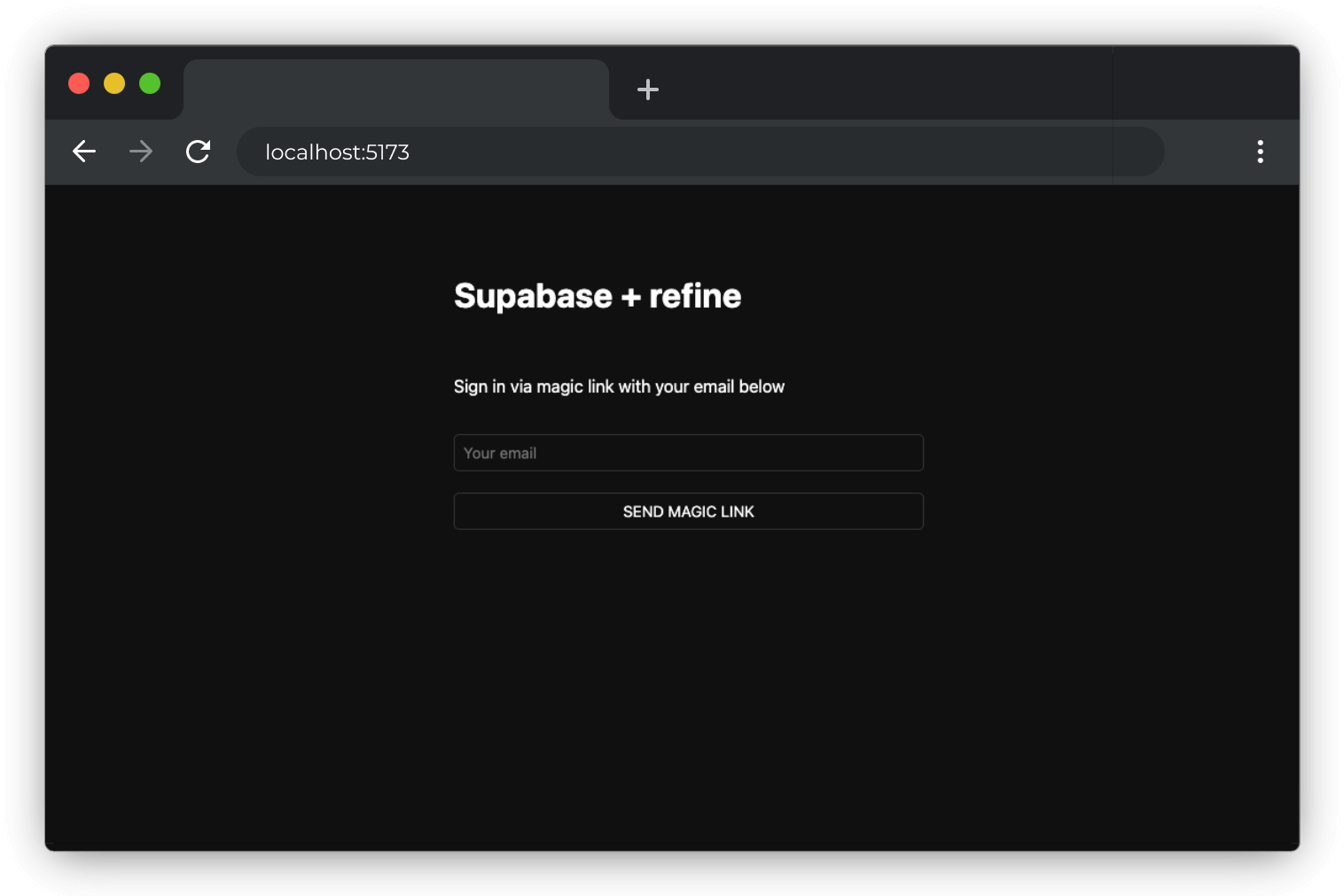
At this stage, you have a fully functional application!