Build a User Management App with Nuxt 3
Explore drop-in UI components for your Supabase app.
UI components built on shadcn/ui that connect to Supabase via a single command.
This tutorial demonstrates how to build a basic user management app. The app authenticates and identifies the user, stores their profile information in the database, and allows the user to log in, update their profile details, and upload a profile photo. The app uses:
- Supabase Database - a Postgres database for storing your user data and Row Level Security so data is protected and users can only access their own information.
- Supabase Auth - allow users to sign up and log in.
- Supabase Storage - allow users to upload a profile photo.
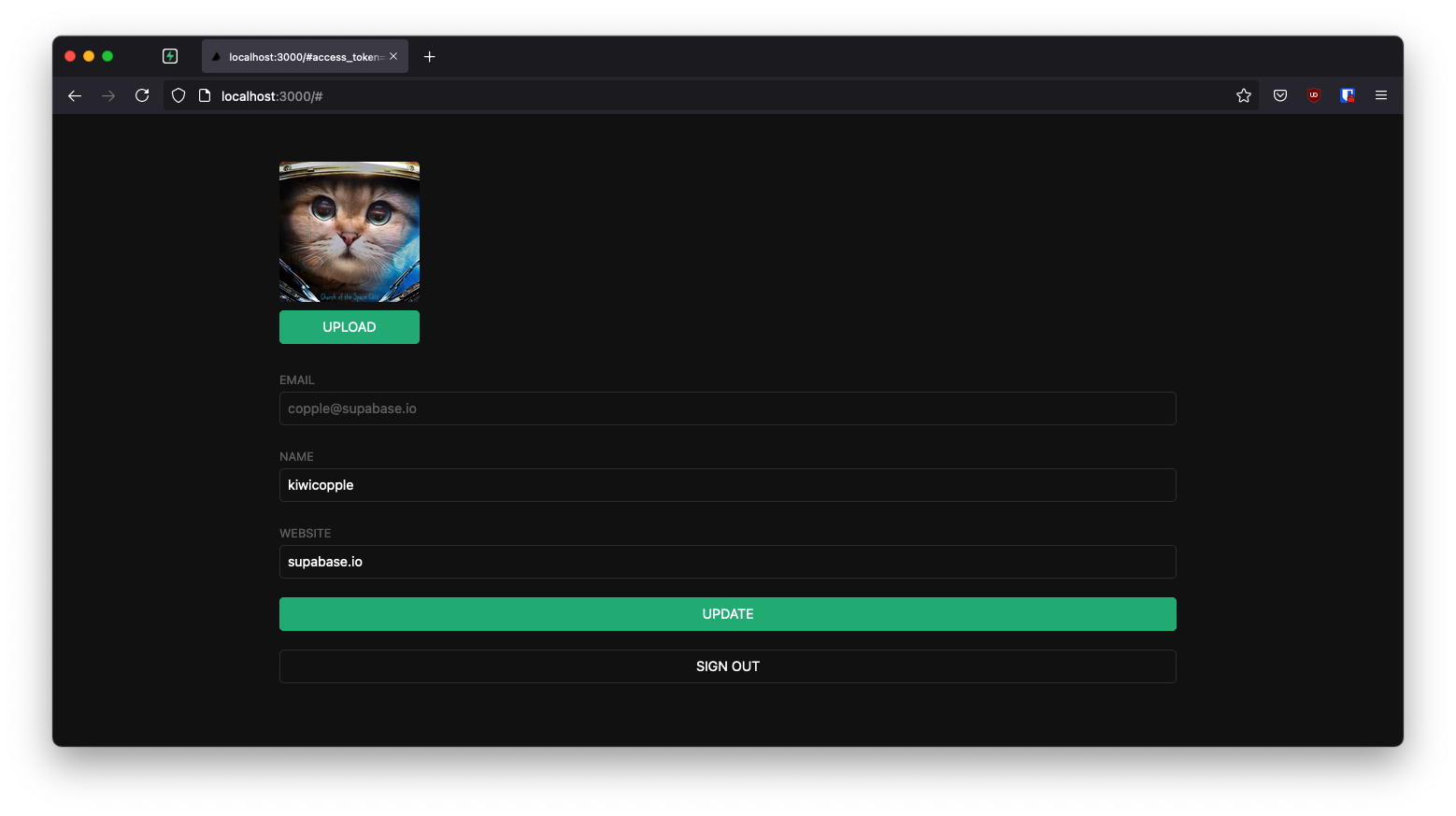
If you get stuck while working through this guide, you can find the full example on GitHub.
Project setup#
Before you start building you need to set up the Database and API. You can do this by starting a new Project in Supabase and then creating a "schema" inside the database.
Create a project#
- Create a new project in the Supabase Dashboard.
- Enter your project details.
- Wait for the new database to launch.
Set up the database schema#
Now set up the database schema. You can use the "User Management Starter" quickstart in the SQL Editor, or you can copy/paste the SQL from below and run it.
- Go to the SQL Editor page in the Dashboard.
- Click User Management Starter under the Reference > Examples tab.
- Click Run.
You can pull the database schema down to your local project by running the db pull command. Read the local development docs for detailed instructions.
supabase link --project-ref <project-id># You can get <project-id> from your project's dashboard URL: https://supabase.com/dashboard/project/<project-id>supabase db pullGet API details#
To interact with data in database tables, you use the client libraries that wrap the auto-generated Data API endpoints, authenticating using the Project URL and key from the project Connect dialog.
See API keys for a full explanation of all key types, their uses, and where to find them.
Building the app#
Build the Vue 3 app from scratch.
Initialize a Nuxt 3 app#
We can use nuxi init to create an app called nuxt-user-management:
npx nuxi init nuxt-user-managementcd nuxt-user-managementThen install the only additional dependency: Nuxt Supabase. We only need to import Nuxt Supabase as a dev dependency.
npm install @nuxtjs/supabase --save-devAnd finally we want to save the environment variables in a .env.
All we need are the API URL and the key that you copied earlier.
SUPABASE_URL="YOUR_SUPABASE_URL"SUPABASE_KEY="YOUR_SUPABASE_PUBLISHABLE_KEY"These variables will be exposed on the browser, and that's completely fine since we have Row Level Security enabled on our Database. Amazing thing about Nuxt Supabase is that setting environment variables is all we need to do in order to start using Supabase. No need to initialize Supabase. The library will take care of it automatically.
App styling (optional)#
An optional step is to update the CSS file assets/main.css to make the app look better.
You can find the full contents of this file in the example repository.
import { defineNuxtConfig } from 'nuxt'// https://v3.nuxtjs.org/api/configuration/nuxt.configexport default defineNuxtConfig({ modules: ['@nuxtjs/supabase'], css: ['@/assets/main.css'],})Set up Auth component#
Set up a Vue component to manage sign-ins and sign-ups. We'll use Magic Links, so users can sign in with their email without using passwords.
<script setup>const supabase = useSupabaseClient()const loading = ref(false)const email = ref('')const handleLogin = async () => { try { loading.value = true const { error } = await supabase.auth.signInWithOtp({ email: email.value }) if (error) throw error alert('Check your email for the login link!') } catch (error) { alert(error.error_description || error.message) } finally { loading.value = false }}</script><template> <form class="row flex-center flex" @submit.prevent="handleLogin"> <div class="col-6 form-widget"> <h1 class="header">Supabase + Nuxt 3</h1> <p class="description">Sign in via magic link with your email below</p> <div> <input class="inputField" type="email" placeholder="Your email" v-model="email" /> </div> <div> <input type="submit" class="button block" :value="loading ? 'Loading' : 'Send magic link'" :disabled="loading" /> </div> </div> </form></template>User state#
To access the user information, use the composable useSupabaseUser provided by the Supabase Nuxt module.
Account component#
After a user is signed in we can allow them to edit their profile details and manage their account.
Create a new component called Account.vue.
<script setup>const supabase = useSupabaseClient()const loading = ref(true)const username = ref('')const website = ref('')const avatar_path = ref('')loading.value = trueconst user = useSupabaseUser()const { data } = await supabase .from('profiles') .select(`username, website, avatar_url`) .eq('id', user.value.id) .single()if (data) { username.value = data.username website.value = data.website avatar_path.value = data.avatar_url}loading.value = falseasync function updateProfile() { try { loading.value = true const user = useSupabaseUser() const updates = { id: user.value.id, username: username.value, website: website.value, avatar_url: avatar_path.value, updated_at: new Date(), } const { error } = await supabase.from('profiles').upsert(updates, { returning: 'minimal', // Don't return the value after inserting }) if (error) throw error } catch (error) { alert(error.message) } finally { loading.value = false }}async function signOut() { try { loading.value = true const { error } = await supabase.auth.signOut() if (error) throw error user.value = null } catch (error) { alert(error.message) } finally { loading.value = false }}</script><template> <form class="form-widget" @submit.prevent="updateProfile"> <div> <label for="email">Email</label> <input id="email" type="text" :value="user.email" disabled /> </div> <div> <label for="username">Username</label> <input id="username" type="text" v-model="username" /> </div> <div> <label for="website">Website</label> <input id="website" type="url" v-model="website" /> </div> <div> <input type="submit" class="button primary block" :value="loading ? 'Loading ...' : 'Update'" :disabled="loading" /> </div> <div> <button class="button block" @click="signOut" :disabled="loading">Sign Out</button> </div> </form></template>Profile photos#
Next, add a way for users to upload a profile photo. Supabase configures every project with Storage for managing large files like photos and videos.
Create an upload widget#
Start by creating a new component:
<script setup>const props = defineProps(['path'])const { path } = toRefs(props)const emit = defineEmits(['update:path', 'upload'])const supabase = useSupabaseClient()const uploading = ref(false)const src = ref('')const files = ref()const downloadImage = async () => { try { const { data, error } = await supabase.storage.from('avatars').download(path.value) if (error) throw error src.value = URL.createObjectURL(data) } catch (error) { console.error('Error downloading image: ', error.message) }}const uploadAvatar = async (evt) => { files.value = evt.target.files try { uploading.value = true if (!files.value || files.value.length === 0) { throw new Error('You must select an image to upload.') } const file = files.value[0] const fileExt = file.name.split('.').pop() const fileName = `${Math.random()}.${fileExt}` const filePath = `${fileName}` const { error: uploadError } = await supabase.storage.from('avatars').upload(filePath, file) if (uploadError) throw uploadError emit('update:path', filePath) emit('upload') } catch (error) { alert(error.message) } finally { uploading.value = false }}downloadImage()watch(path, () => { if (path.value) { downloadImage() }})</script><template> <div> <img v-if="src" :src="src" alt="Avatar" class="avatar image" style="width: 10em; height: 10em;" /> <div v-else class="avatar no-image" :style="{ height: size, width: size }" /> <div style="width: 10em; position: relative;"> <label class="button primary block" for="single"> {{ uploading ? 'Uploading ...' : 'Upload' }} </label> <input style="position: absolute; visibility: hidden;" type="file" id="single" accept="image/*" @change="uploadAvatar" :disabled="uploading" /> </div> </div></template>Launch!#
With all the components in place, update app.vue:
<script setup>const user = useSupabaseUser()</script><template> <div class="container" style="padding: 50px 0 100px 0"> <Account v-if="user" /> <Auth v-else /> </div></template>Once that's done, run this in a terminal window:
npm run devAnd then open the browser to localhost:3000 and you should see the completed app.
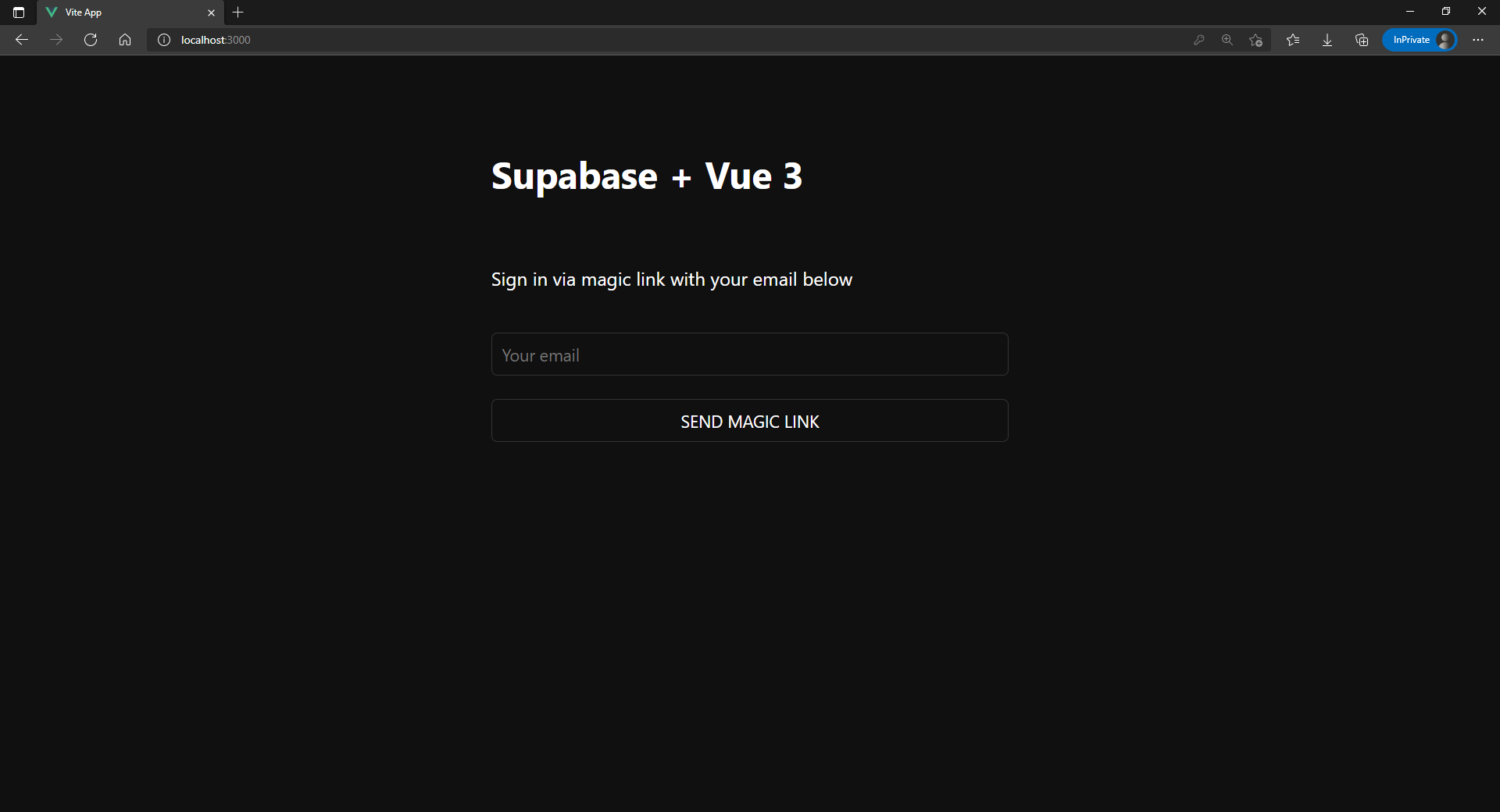
At this stage you have a fully functional application!
Add a server route#
So far the app authenticates the user on the client. For protected API endpoints or server-rendered data, you need a server route that verifies the session.
@supabase/server handles the full flow through a single middleware: it validates the JWT locally (using your project's asymmetric signing keys, no round-trip to the Auth server), attaches an RLS-scoped Supabase client and the user's claims to the request, and rejects unauthenticated requests with a 401 before your handler runs.
npm install @supabase/serverimport { withSupabase } from '@supabase/server/adapters/h3'import { defineHandler } from 'h3'export default defineHandler({ middleware: [withSupabase({ auth: 'user' })], handler: async (event) => { const { supabase, userClaims } = event.context.supabaseContext const { data, error } = await supabase .from('profiles') .select('username, website, avatar_url') .eq('id', userClaims.id) .single() if (error) { throw createError({ statusCode: 500, statusMessage: error.message }) } return data },})For an unauthenticated route, pass auth: 'none'. For app-wide auth, register withSupabase({ auth: 'user' }) as a Nuxt server middleware at server/middleware/supabase.ts instead. See the h3/Nuxt adapter docs for typing, route overrides, and the full API.